How to Summarize PDF with AI
Lumi, our AI reading assistant, can quickly generate concise summaries of your PDF documents, highlighting key points and even suggesting insightful questions.
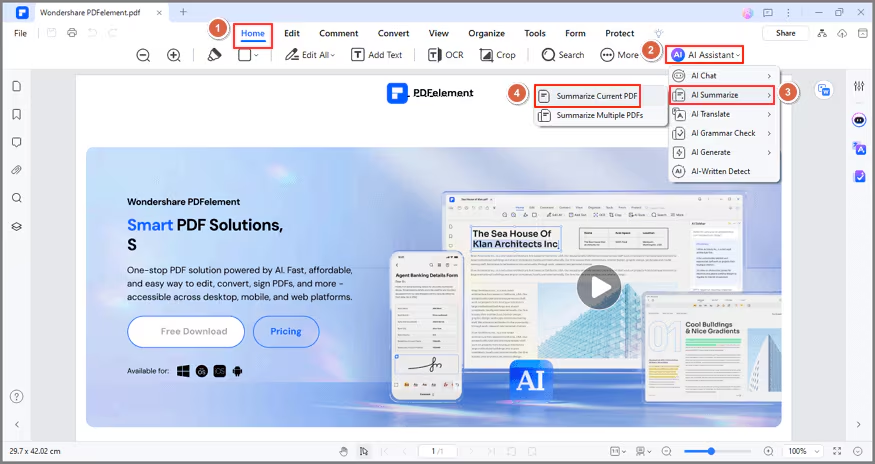
- Open your PDF in PDFelement. Access the AI Sidebar via the "AI" icon on the right or the "AI Assistant" button under the "Home" tab.
- Click "AI Summarize" > "Summarize Current PDF" in the dropdown menu. Lumi will promptly generate a summary, presenting three key points and three insightful questions related to the PDF content.
- If you want to summarize other content or part of the PDF document, click the "Quick Prompt List", select "Summarize" command and input your desired text.
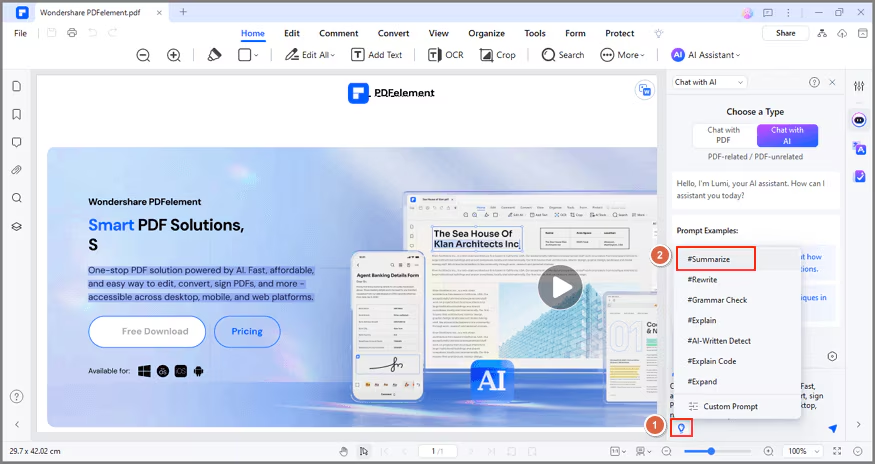
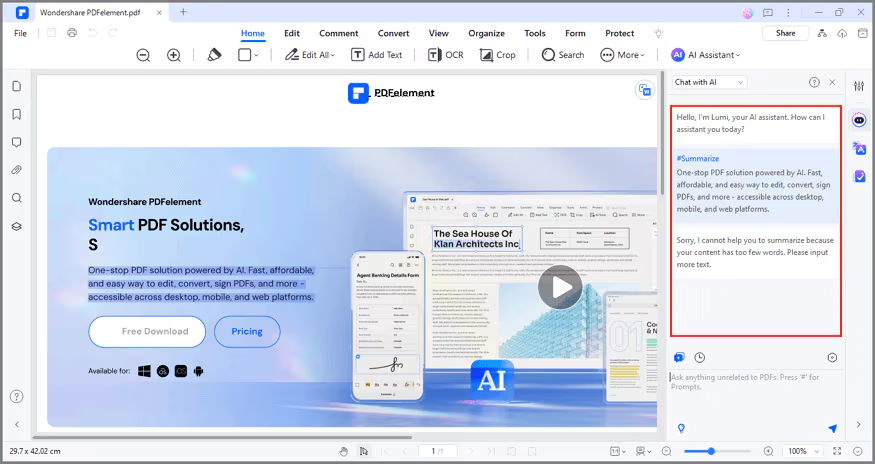
- Click the send icon to see Lumi's AI-driven summarization, complete with an abstract and three essential key points.
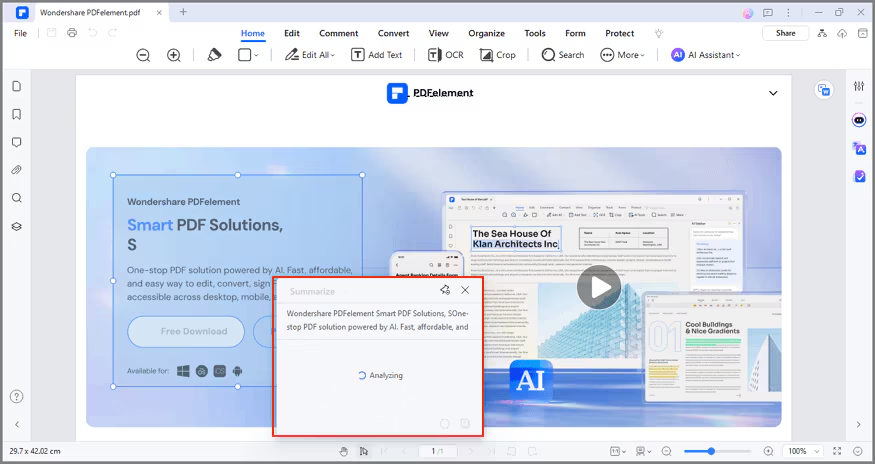
- If you want a quick summarization of specific text within your current PDF file, highlight the desired text portion. Click the "AI" button in the floating toolbar and choose "Summarize."
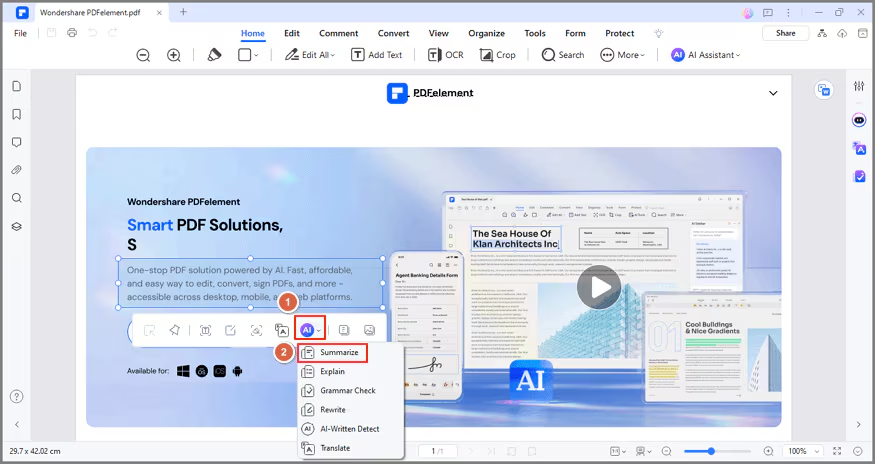
- Lumi will swiftly generate an abstract along with three key points related to the selected text. To utilize this summary, simply click the "Copy" button within the window and paste it into your current PDF or a new document.