How to Add Page Number to PDF
Discover a hassle-free way to enhance the navigation of your PDF documents by adding page numbers using AULPDF.
1. Add Page Number
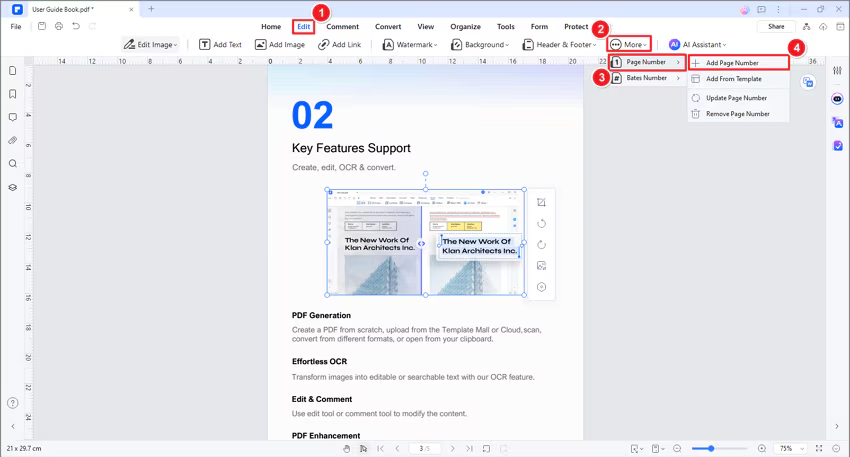
- Open the "Edit" tab, then click on "More," followed by "Page Number," and select "Add Page Number."
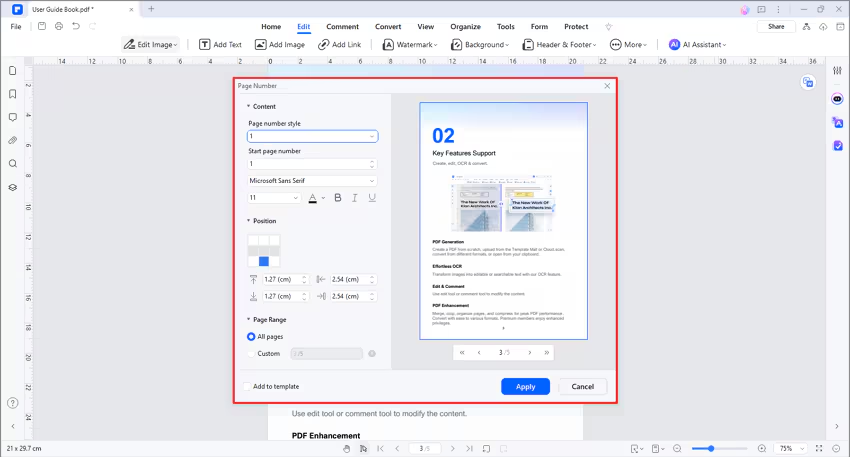
- In the subsequent "Page Number" window, tailor your page numbers by configuring the style, position, and page range. A real-time preview of the layout is provided on the right side.
- You can even save these settings as a template for future use by checking the "Add to template" option. Once satisfied, click "Apply" to implement your selections.
2. Update Page Number
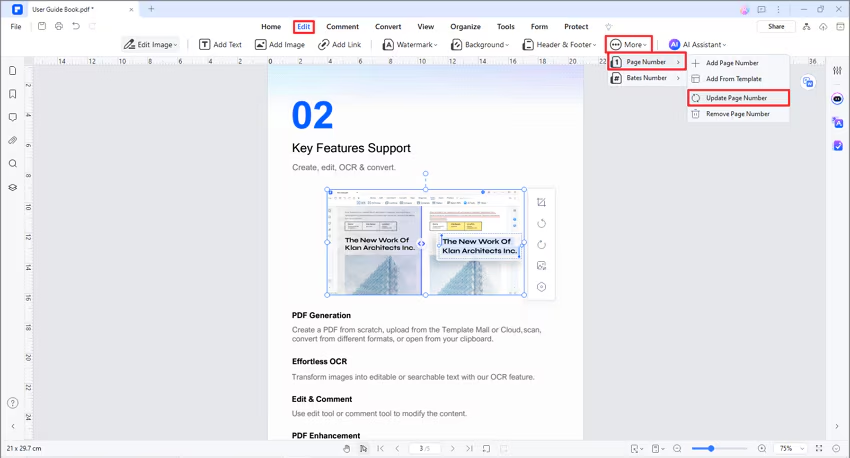
- For edits, simply click the "Update Page Number" button.
- In the "Page Number" section, modify your preferences and instantly preview the changes in the "Preview" segment.
- After refining, confirm your updates by clicking "Apply."
3. Remove Page Number
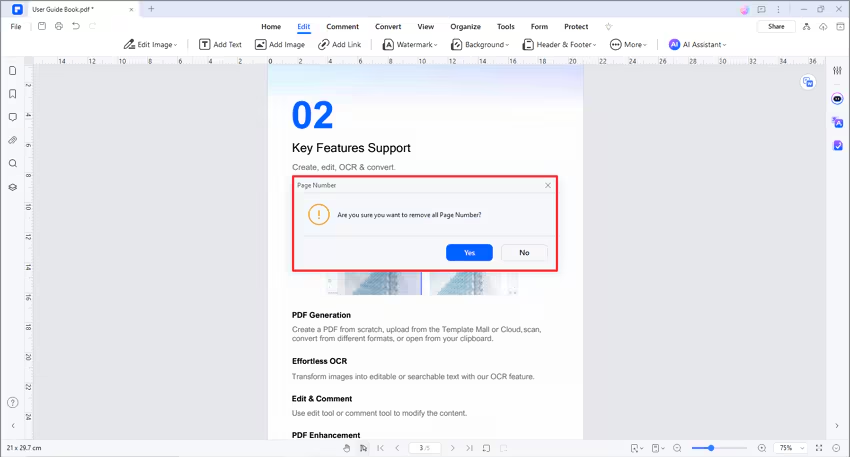
- Removing page numbers is equally hassle-free. Click the "Remove Page Number" button.
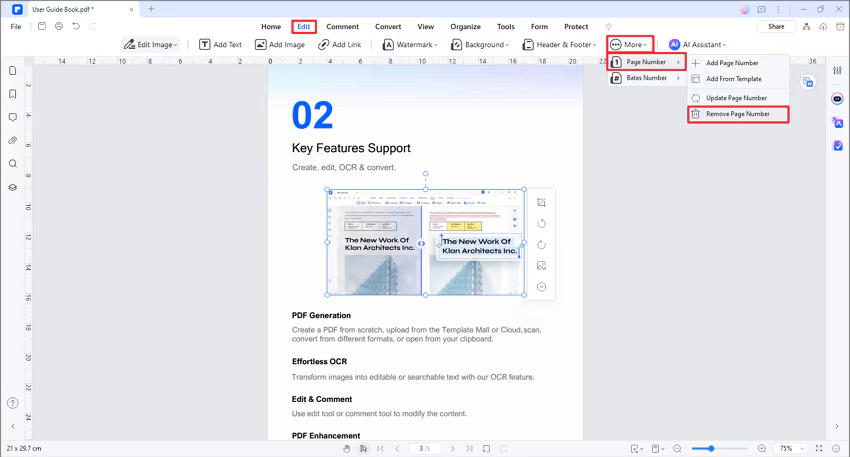
- In the subsequent confirmation dialog, affirm the deletion by selecting "Yes."