How to Proofread PDF with AI
Enhance your PDF document's quality through comprehensive proofreading with PDFelement's Lumi AI reading assistant. Follow these steps to perfect your content:
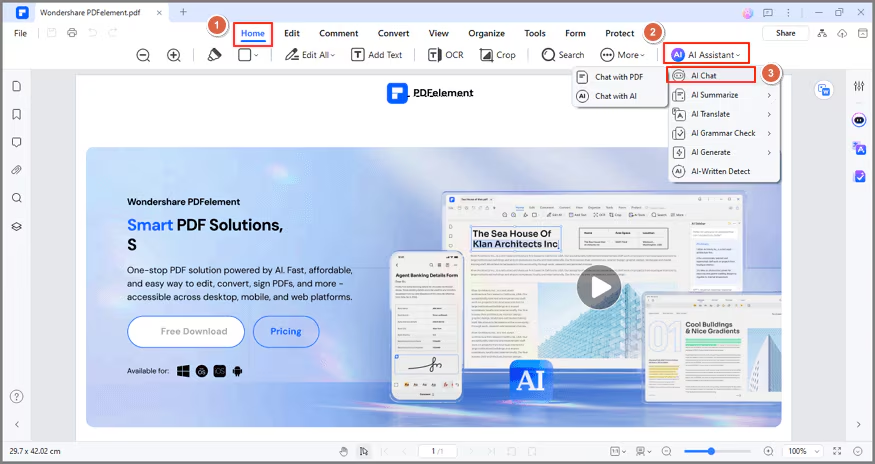
- Open your PDF document using PDFelement. Under the "Home" tab, access "AI Assistant" and select "AI Chat."
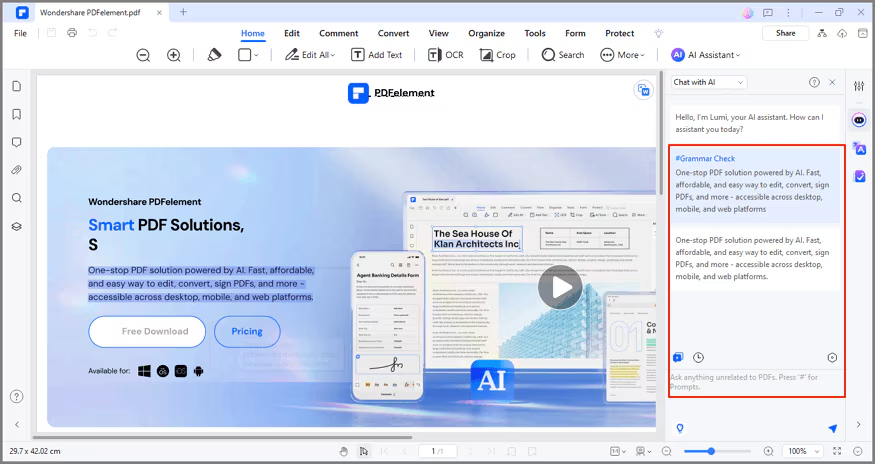
- Click the “Quick Prompt List” and select “Grammar Check.” Lumi will instantly proofread the current page, offering improvement suggestions.
- Control the proofreading process by clicking "Pause" to temporarily halt or "Close" to stop.
- To proofread other content or a part of the PDF file, utilize the "Grammar Check" command in the AI Sidebar and input the desired text.
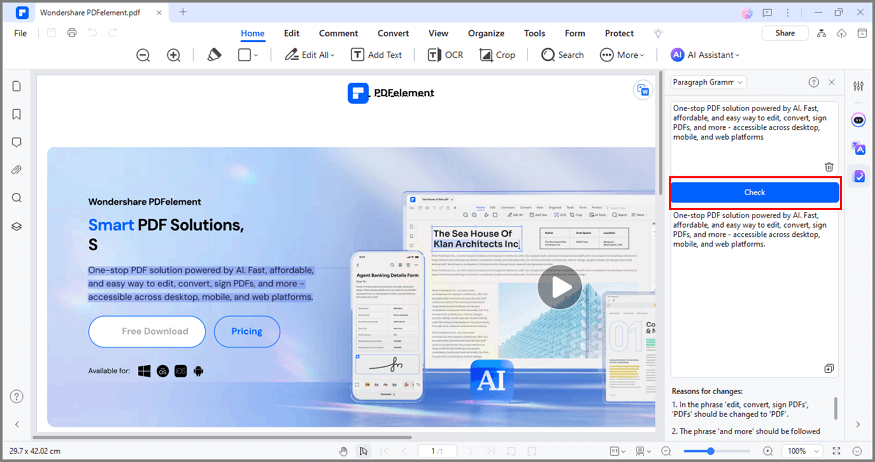
- Click the send icon, and Lumi will deliver a proofread version of the text. Copy the enhanced text for your use.
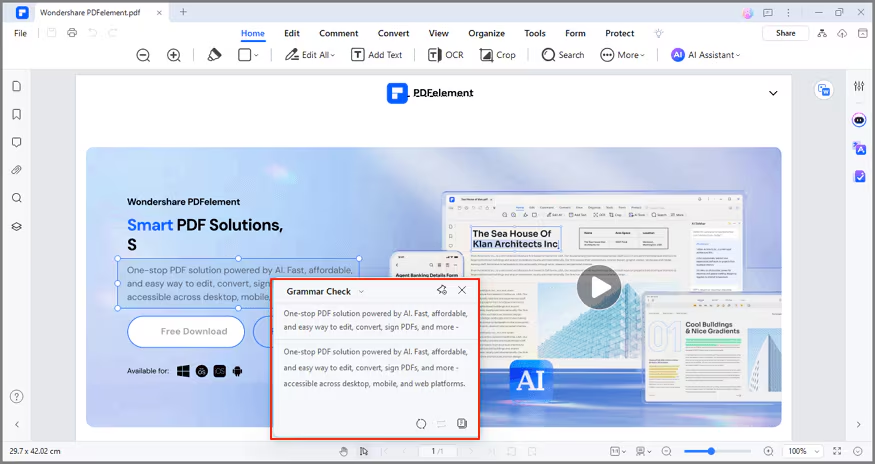
- For rapid proofreading of a specific text, highlight the content, and choose "Grammar Check" by clicking the "AI" button in the floating toolbar.
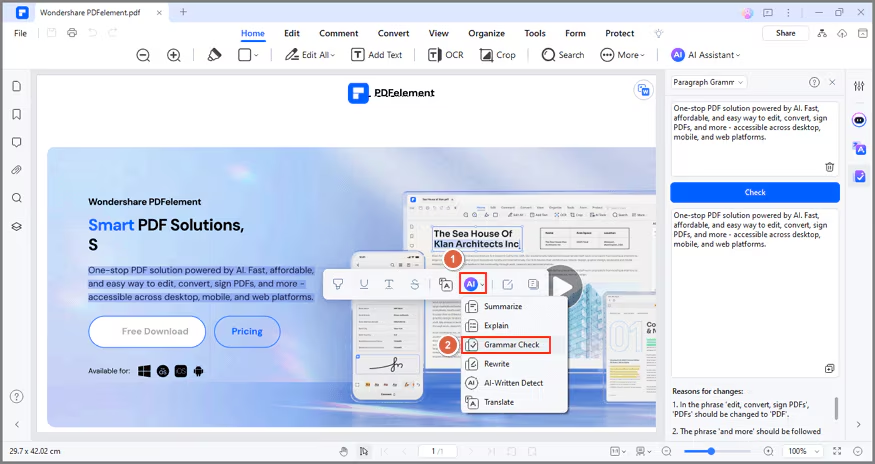
- Upon proofreading completion, Lumi swiftly offers the enhanced version. You have two convenient options:
- Utilize the "Replace" icon to directly replace the original text with the proofread version.
- Copy the proofread text using the "Copy" button, then seamlessly paste it into your current PDF or a new document for immediate use.