How to combine PDF files.
AULPDF supports combining multiple PDF files into one and generating a new catalog page from bookmarks.
Index
01Combine PDFs
02Combine to PDF from different format files
1. Combine PDFs.
Launch AULPDF, click the "Combine" box on the start page under the Quick Tool tab.

In the new "Combine PDF" Window, drag and drop files or click the "Add Files" button to import the PDF files from your computer. (Tip: To combine attached files from emails, you can directly drag and drop the attachments to the "Combine" Window.)

Alternatively, you can open a file you want to combine in the program first, click the "Tool" > "Combine" button in the Toolbar to open the Combine PDF window. Next, click "Add File" to import more other files.

Click "..." to set an output folder for the combined PDF file. In addition, you can select the "Add a new table of content page generated from bookmarks" option as needed.
Click the "Apply" button. AULPDF will combine the PDF files you add within a few seconds. Besides, the combined PDF will be automatically open in AULPDF, and you can now edit or manage it as you wish.
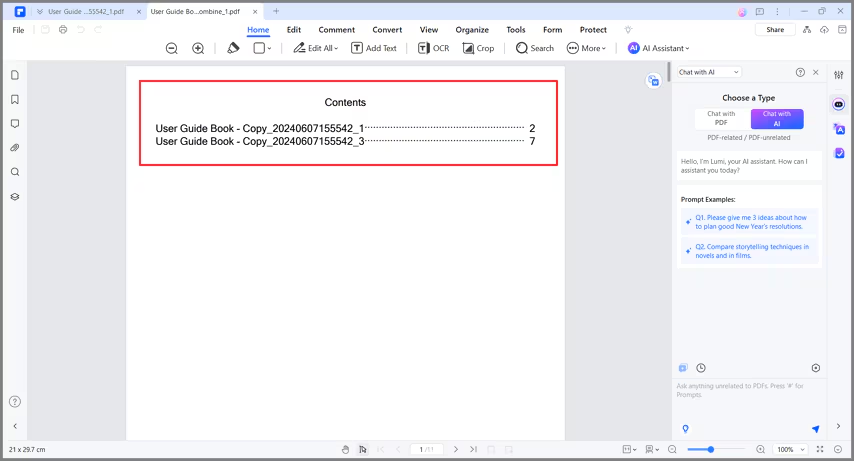
Furthermore, if you select to generate a new catalog page from bookmarks when combining files, there will be a new catalog page in your combined PDF, helping you find the target page quickly.
2. Combine PDF from different format files.
You can easily combine files in different formats into a single PDF. The operation method is the same as combining multiple PDF files into one, except you cannot set the Page Range of files in other formats for combination. Therefore, please refer to the previous section for detailed information.
