How to Explain PDF Content and Code
PDFelement empowers you to effortlessly explain PDF content, including code snippets, enhancing clarity and collaboration. Follow these steps to effectively explain PDF content and code:
01 Explain Content
02 Explain Code
1. Explain Content
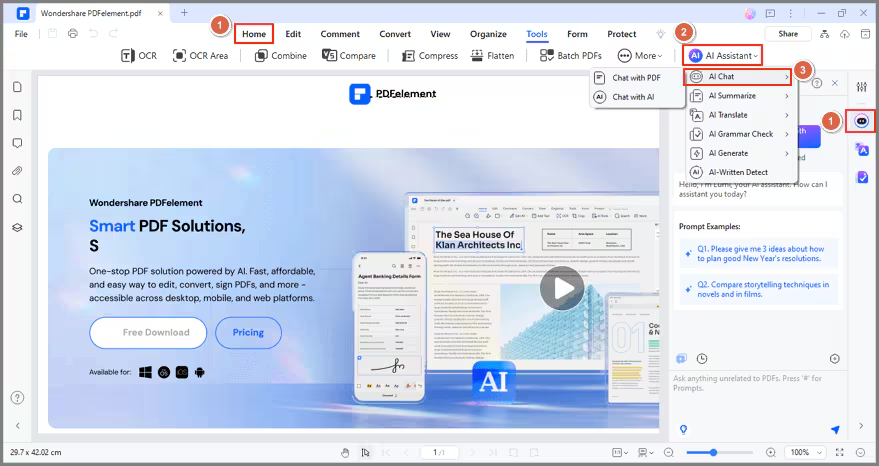
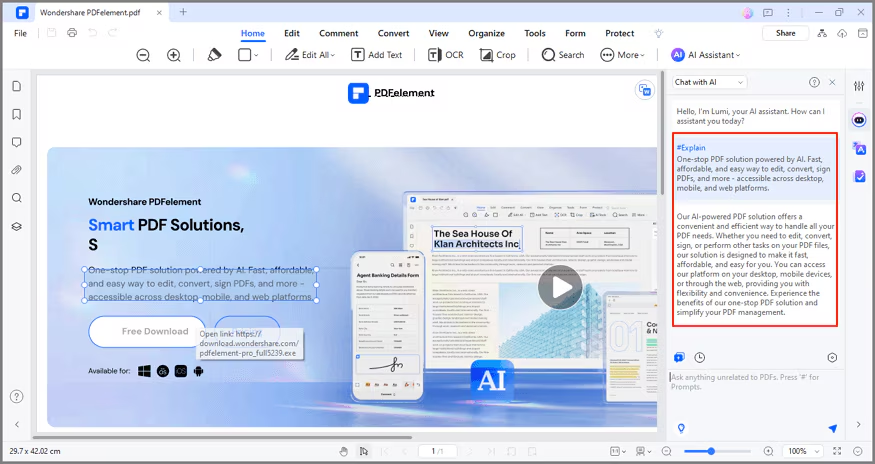
Access your target PDF file. Click the "AI" icon on the right side of the interface or choose "AI Chat" from the "AI Assistant" button under the "Home" tab.
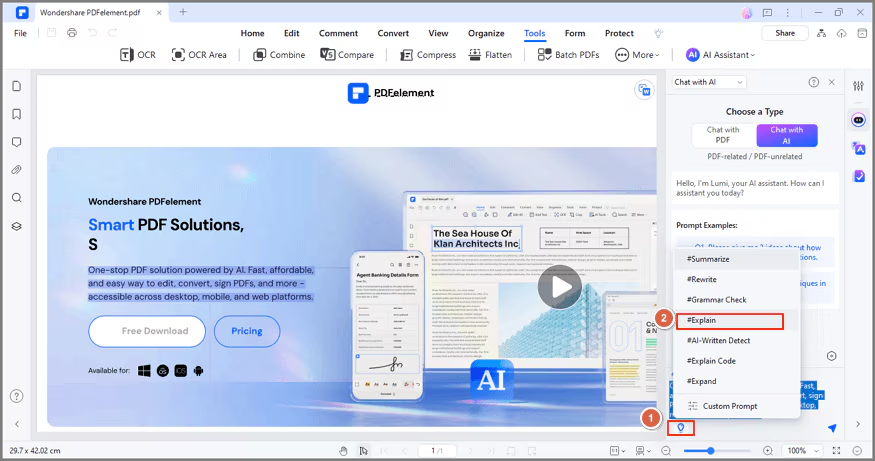
Click the “Quick Prompt List” and select the "Explain" command to start explaining content. Enter the text you wish to explain.
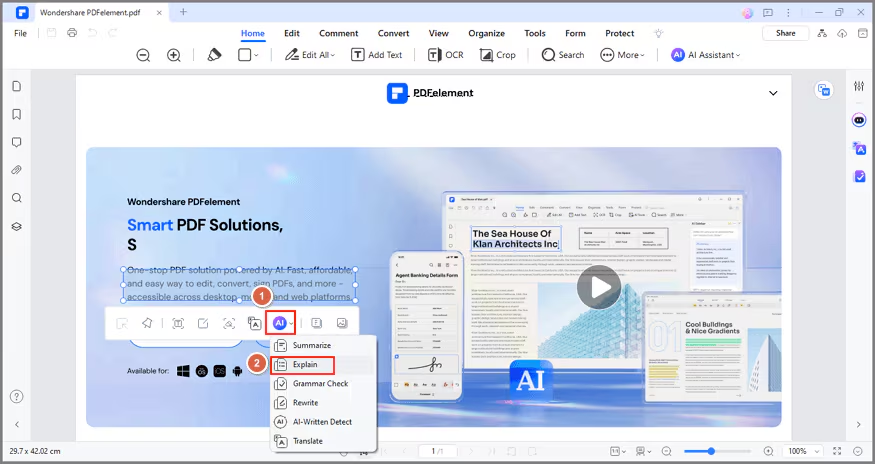
Alternatively, for quick access, highlight the desired text in the PDF, click the "AI" button in the floating toolbar, and choose the "Explain" option.
Lumi AI reading assistant will promptly provide an explanation. Copy the explanation for future reference.
2. Explain Code
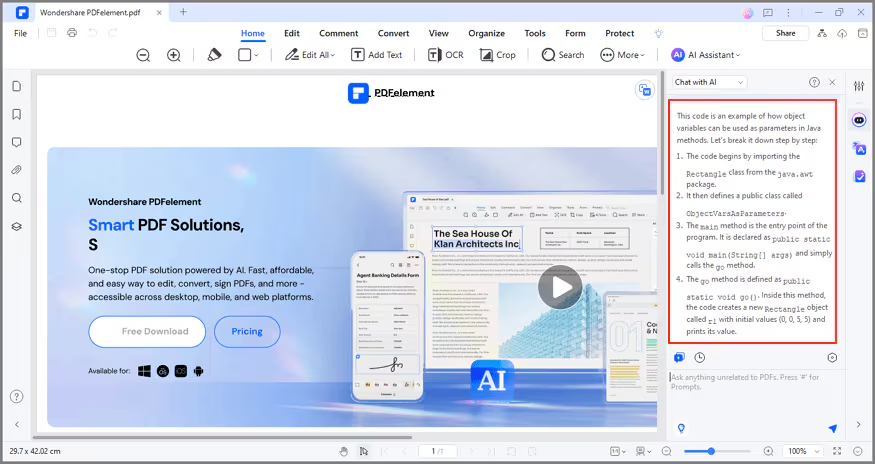
To explain code snippets, choose the "Explain Code" command. Enter the code snippets in the designated text box and send.
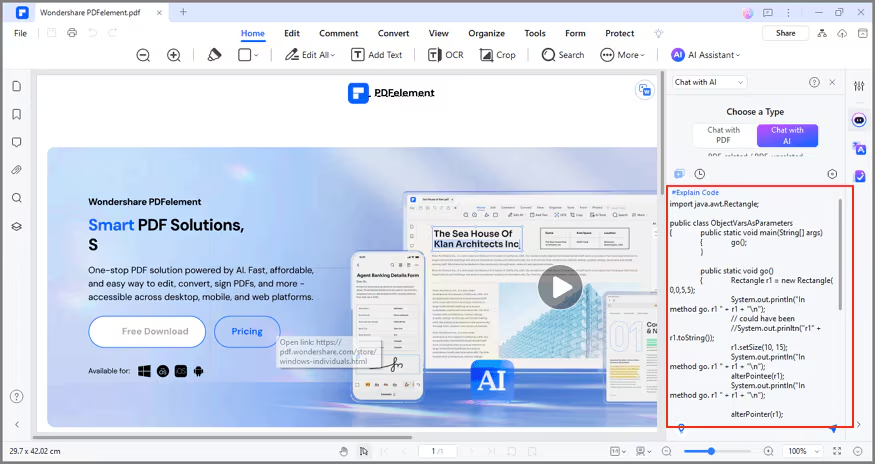
Lumi will elaborate on the code snippets, enhancing understanding.