How to Translate PDF with AI
Break down language barriers and embrace global communication with PDFelement's advanced AI translation feature. Seamlessly transform your PDF documents into a multitude of languages. Follow these steps to harness the power of AI translation:
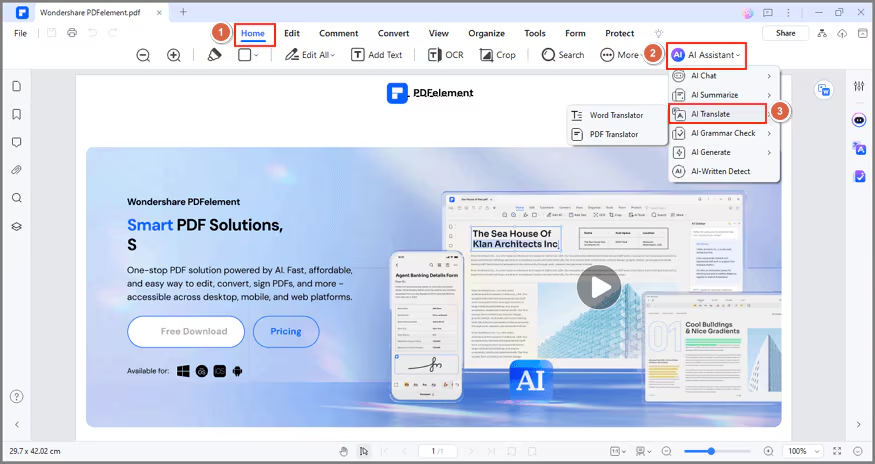
- Open your PDF in PDFelement. Click the "AI Assistant" button under the "Home" tab, and select "AI Translate."
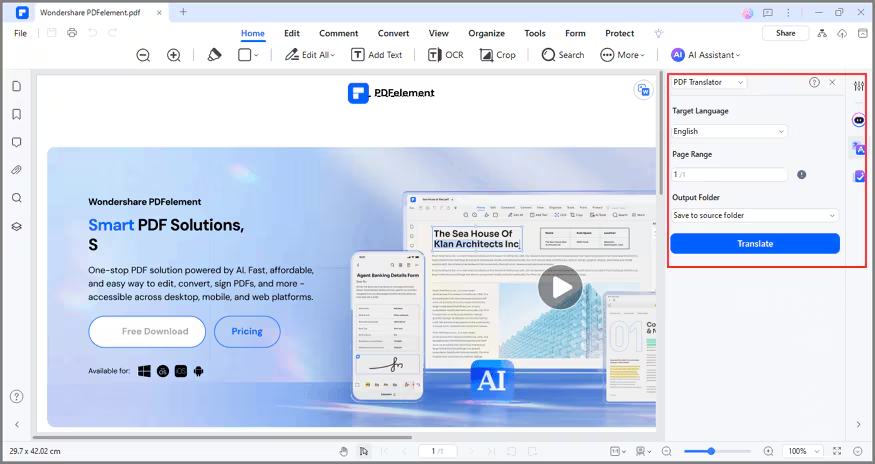
- In the popup window, select your target language, specify the page range, and choose the folder to save the translated file. Then, simply click "Translate."
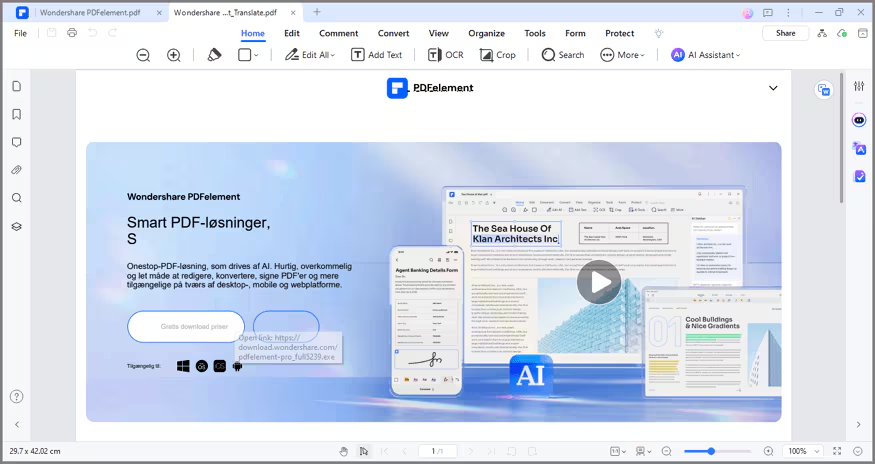
- Lumi will generate a PDF file with the translated text, preserving the original formatting seamlessly.
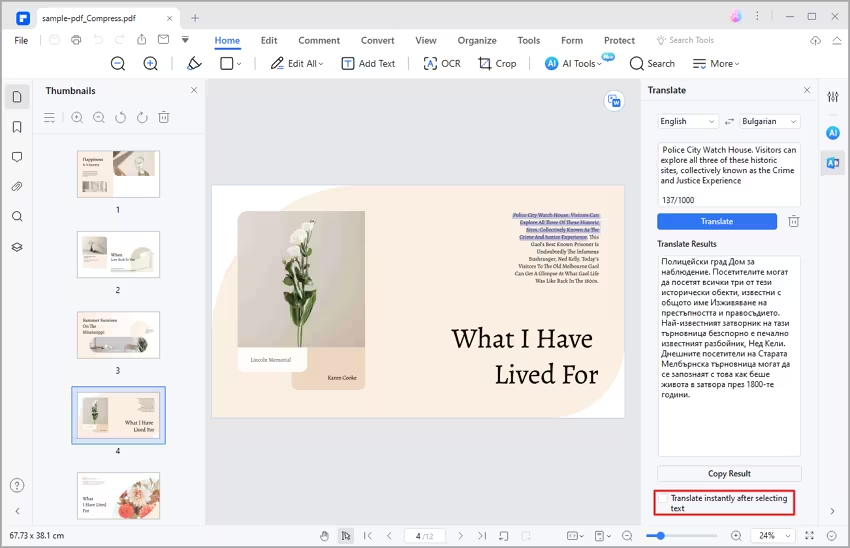
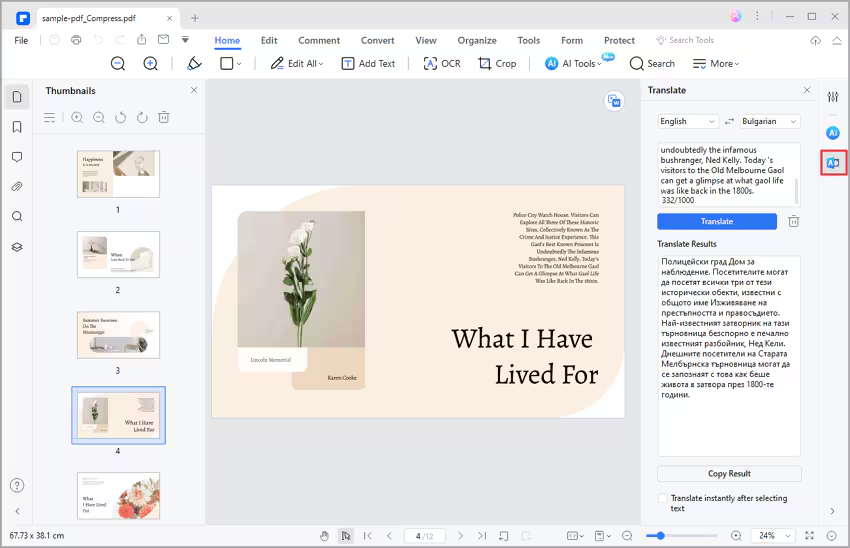
- Alternatively, you can directly access the "Translate" icon on the right. Copy the text you wish to translate, specify the source and target languages, and click "Translate" to initiate the process. Once complete, copy the translated result for your use.
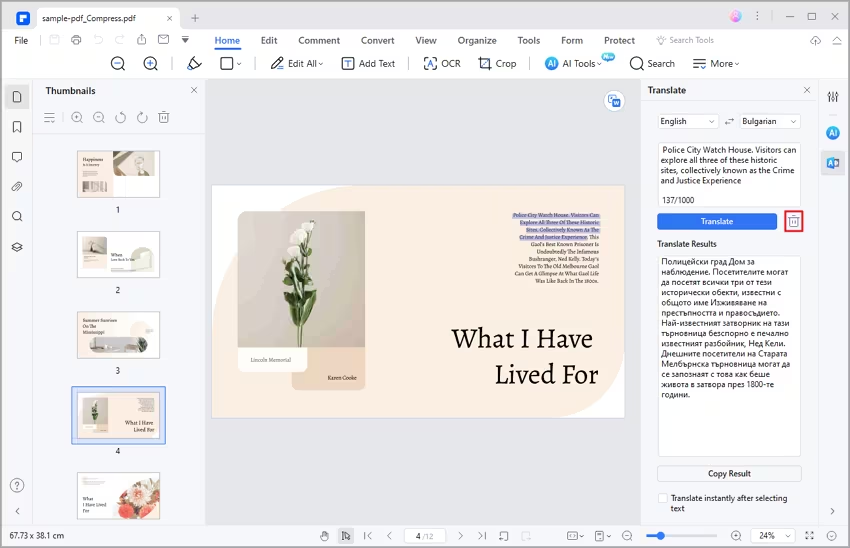
- To begin a new translation, click the "Trash" icon.
Note:
If you prefer not to begin translation immediately after selecting the text, you can uncheck the "Translate instantly after selecting text" option at the bottom.