How to delete blank pages from PDF.
It’s quite easy to delete single pages by selecting them in the Thumbnail panel and delete each page one by one. But what if there are many blank pages in the document? How to delete blank pages from PDF in batch?
- Click on “Page”, tap in “Page Input” box, select the “Blank Pages”, then all the blank pages in the PDF will be selected at once.

- After you choose “Blank Pages”, the “Page Input” box will show the page number of all the blank pages.
- Right click on any selected blank page, choose “Delete” and you can delete the blank pages from PDF in batch.

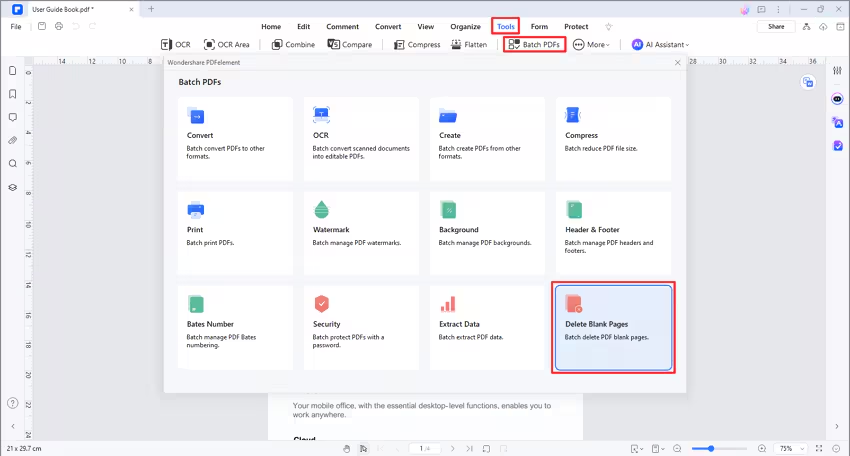
- You can also try “Tool>Batch Process>Delete Blank Pages”, then you drag or drop your files with blank sheets to the operating area, and AULPDF will quickly delete all blank page in your files within seconds.
Contact Support
Still have confusion or any suggestions? Please contact support and we will reply within 24 hours.