How to convert PDF to other formats.
PDFelement supports exporting PDF to MS Office, Image, HTML, RTF, and other format files. Here are two methods for you to convert a single PDF file.
1. View and convert.
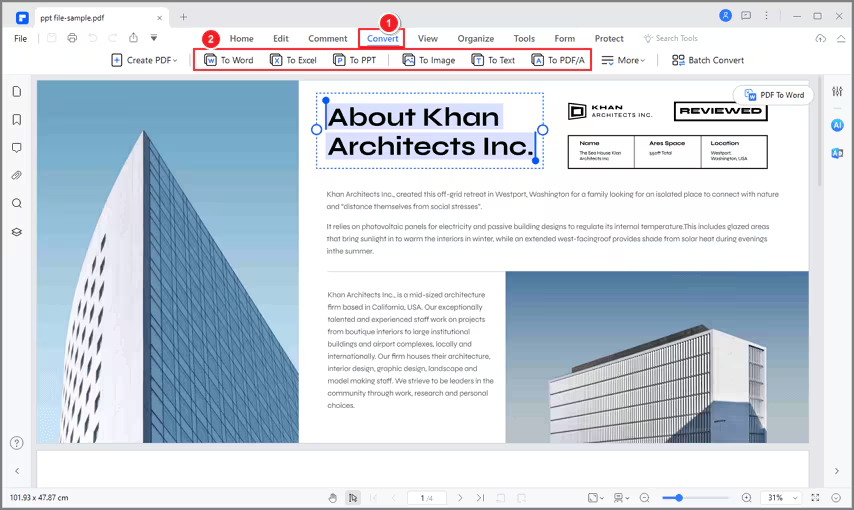
- After opening your PDF file in PDFelement, click "Convert" > "To Word", "To Excel", "To PPT", "To Image", etc. to convert the file to the format as needed.
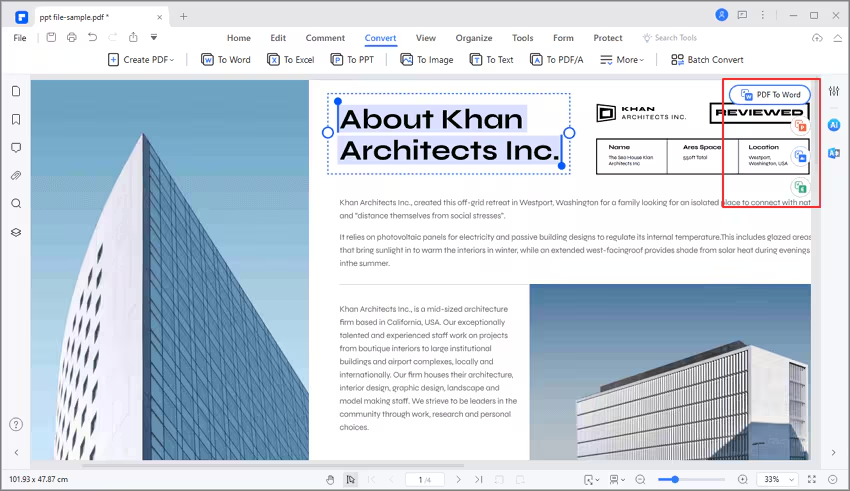
- You can also click the floating button on the top right corner to quickly start converting PDF to Word, Excel, PPT, and image.
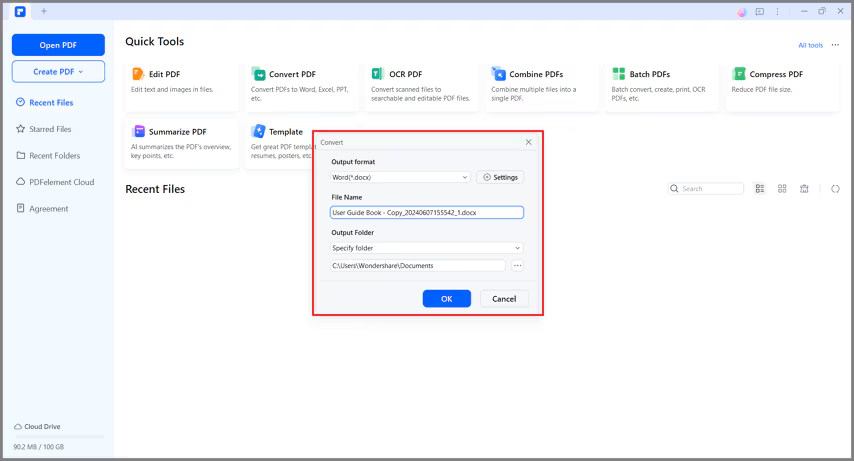
- In the new dialog box, choose the output folder to save the converted file. Here you will have another chance to change the output format by changing the "Save as type" option.
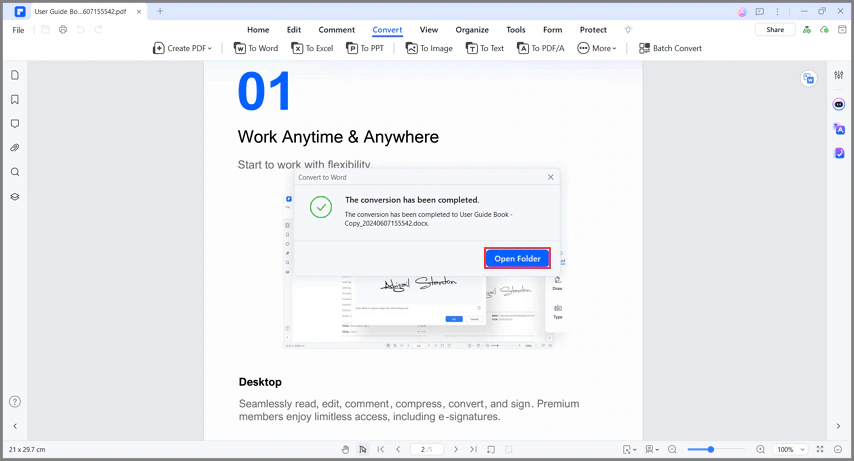
- After conversion, you can go to the output folder to find the converted file on your computer or click the "Open" button in our dialog box, it will lead you to the output folder directly
2. Convert Directly
- After opening the program PDFelement, you can click the "Convert" box under the Quick Tools section on the start page.

- In the new dialog box, please select the PDF file that you want to convert.
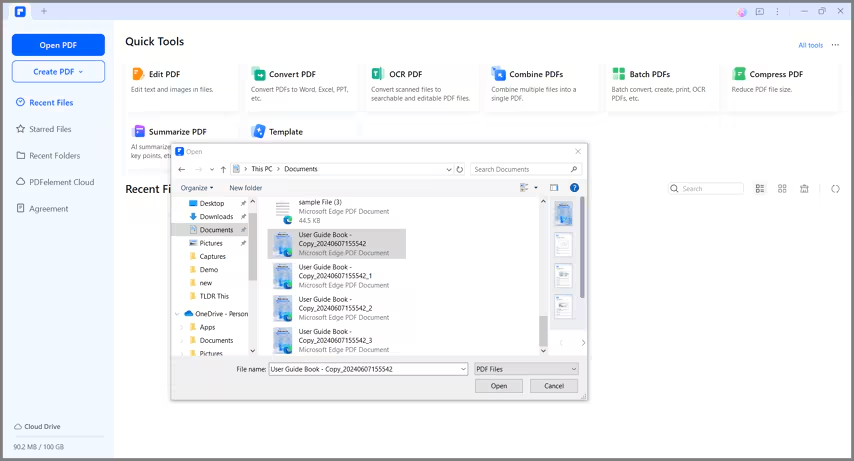
- In the second pop-up dialog window, please select the output folder where you want to save the converted file and select the output format as you wish.
- After conversion, you can go to the output folder to find the converted file on your computer, or click the "Open" button in our dialog box, which will lead you to the output folder directly.
3. Right Click to Convert
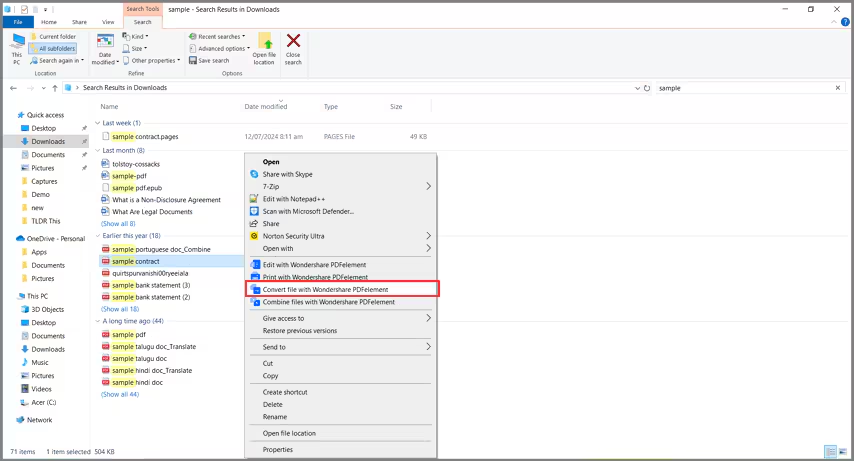
- Select the PDF file you want to convert to other file formats.
- In the reviewed menu, choose "Convert file with Wondershare PDFelement."
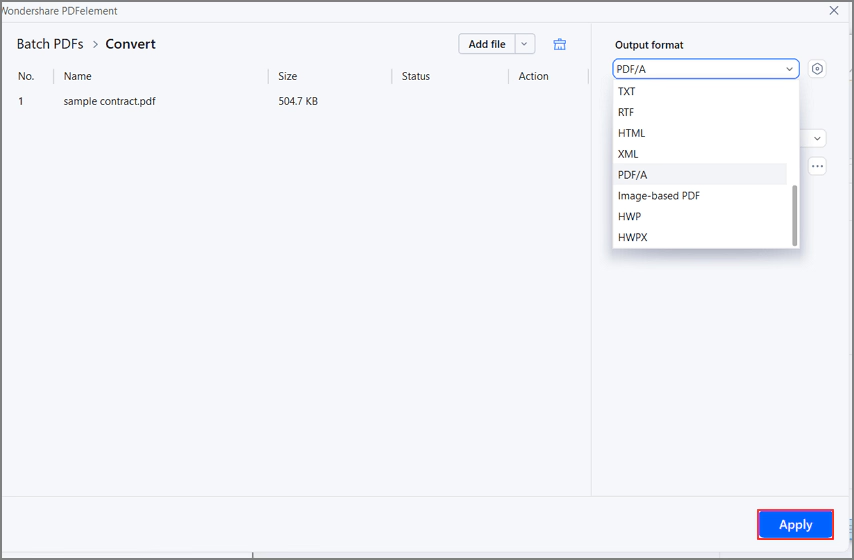
Then PDFelement will start and pop up the convert window. In this window, you need to select the "Output Format". There are many options available in the drop-down menu.

- After selecting the output format, hit the "Apply" button.
- The bar under the Status column displays the converting progress.

- Within a few seconds, the PDF file will be converted to other formats.