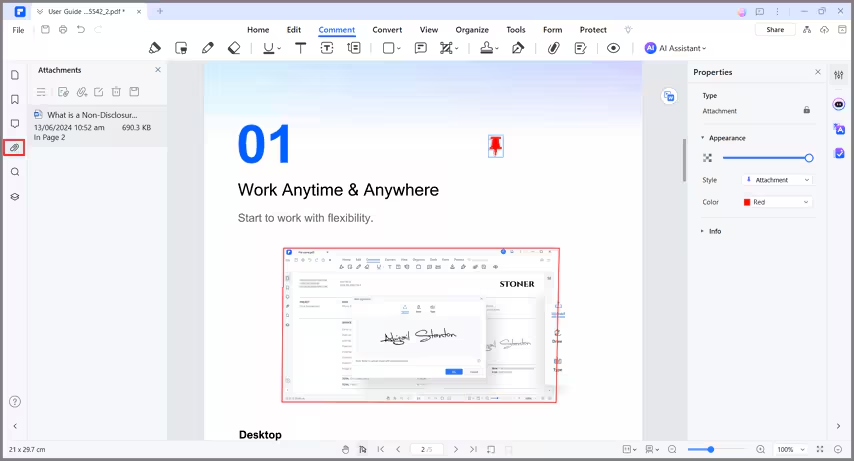
How to add attachments to PDF.
Use the "Add Attachment" tool to embed a file at a selected location in a PDF, so that the reader can open it for viewing. By adding attachments as comments, you can reference longer documents that can't easily be pasted into a pop-up note or text box. If you move the PDF to a new location, the embedded file attachments automatically go with it. To view an attachment, the reader must have an application installed that can open the attachment.
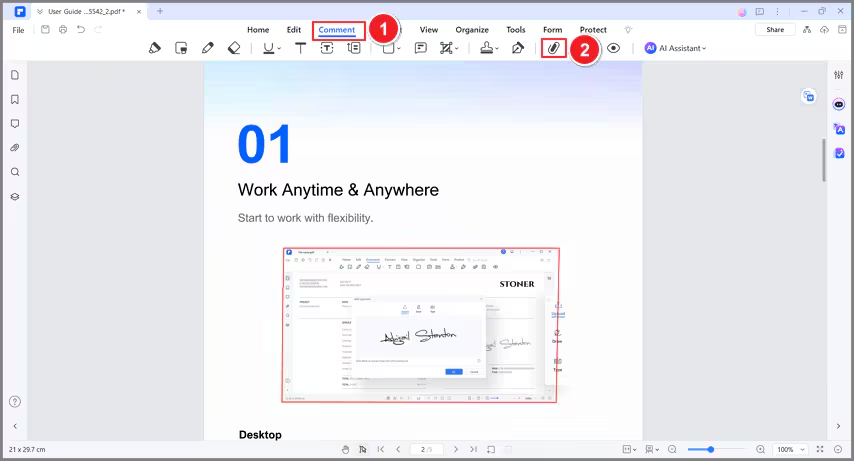
- Click the "Comment>Attachment" button, and click on the page where you want to add this comment.
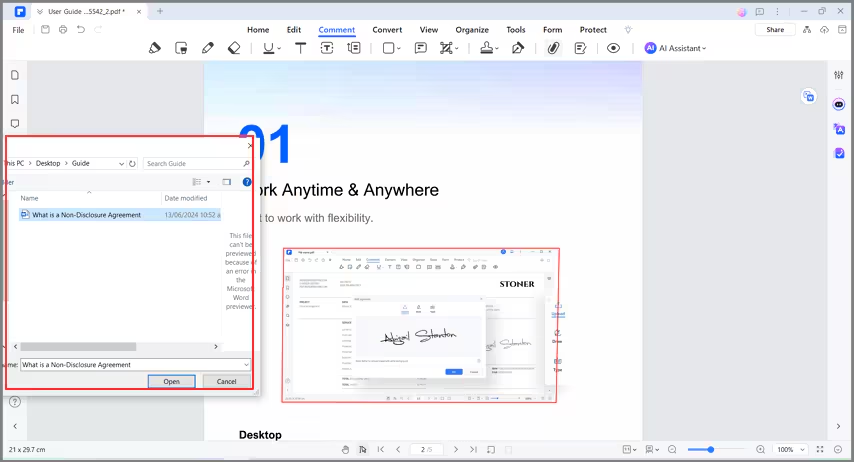
- A pop-up dialog will open, and you can browse to select a file to attach.
- Right-click this comment to open attachment/save attachment/cut/copy/delete/open properties.
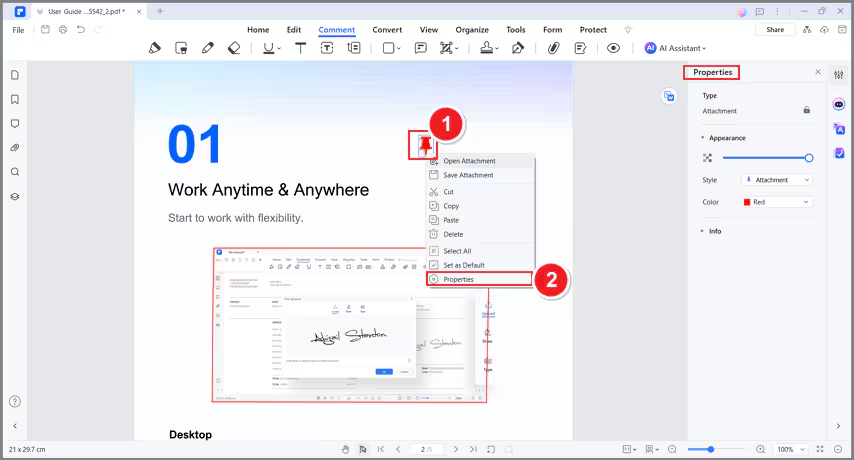
- You can change the icon style/color/opacity in its properties.
- The attachment comment will also be listed in the Attachment panel. Click one of the attachments in the panel, and it will lead you to that page.