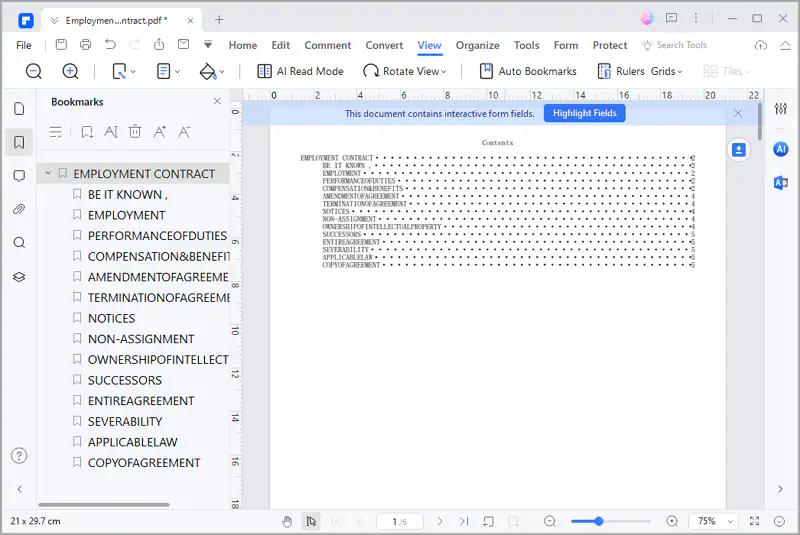
How to add bookmarks to PDF.
1. Auto Bookmarks.
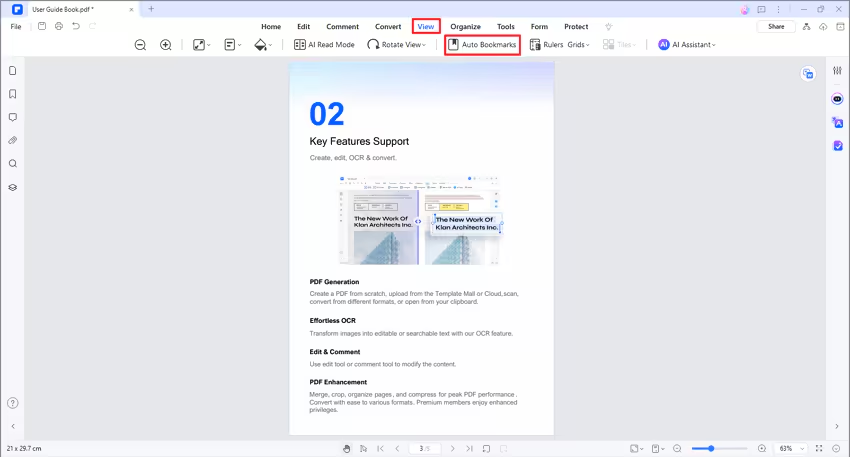
- AULPDF is able to generate bookmarks automatically according to the heading styles in your PDF. Click the "Auto Bookmarks" button under the "View" tab. Thus, the bookmarks will be created automatically.
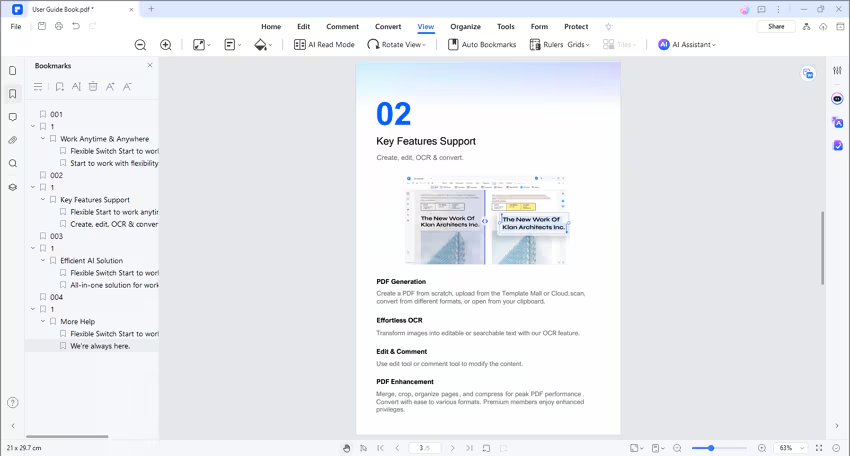
- You can head to the Bookmark Panel on the left side, expand and check the auto-generated bookmarks.
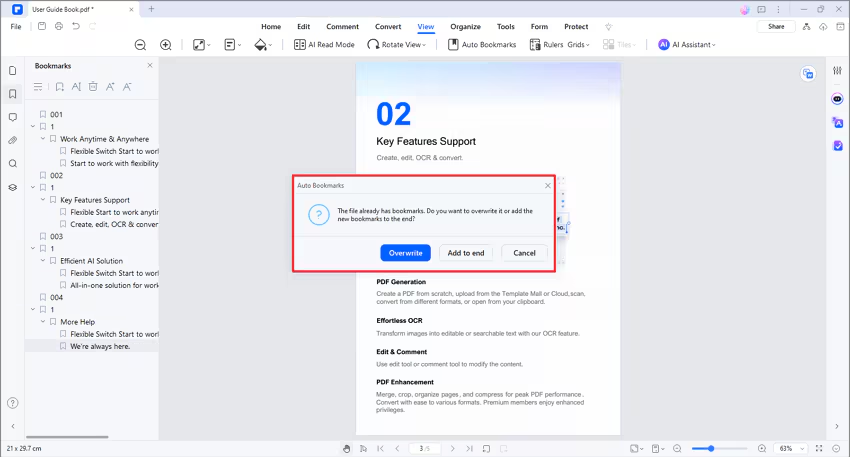
- If your PDF file has already got bookmarks. You will receive the following message after clicking the "Auto Bookmarks" button. Then, you can choose to write the existing bookmarks or add new bookmarks to the end.
Tip:
Please apply different text formatting styles to your PDF file for each level of heading. It will make AULPDF generate auto bookmarks precisely and easily.
2. Add Bookmarks.
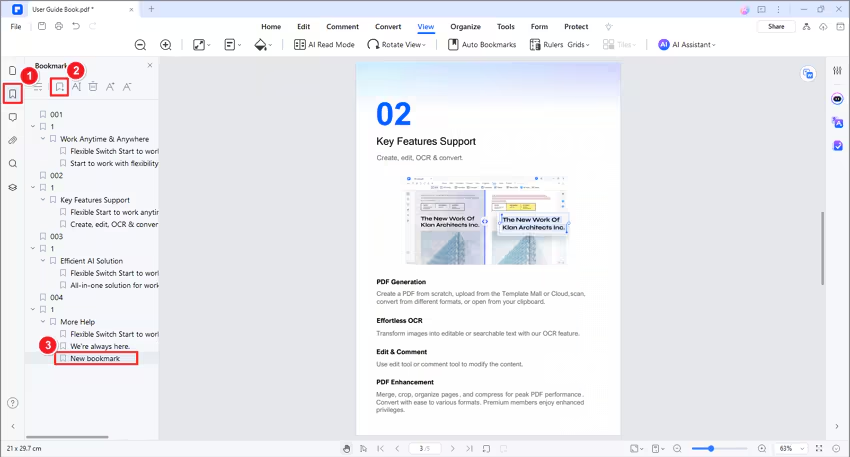
- Navigate to the page in which you want to insert a bookmark. Then click the Bookmark panel and select the "Add" button to insert the bookmark.
- Open one file and click the "Bookmark" button at the left side panel, and it will open the Bookmark panel to create the bookmark for the current page directly.
3. Edit Bookmarks.
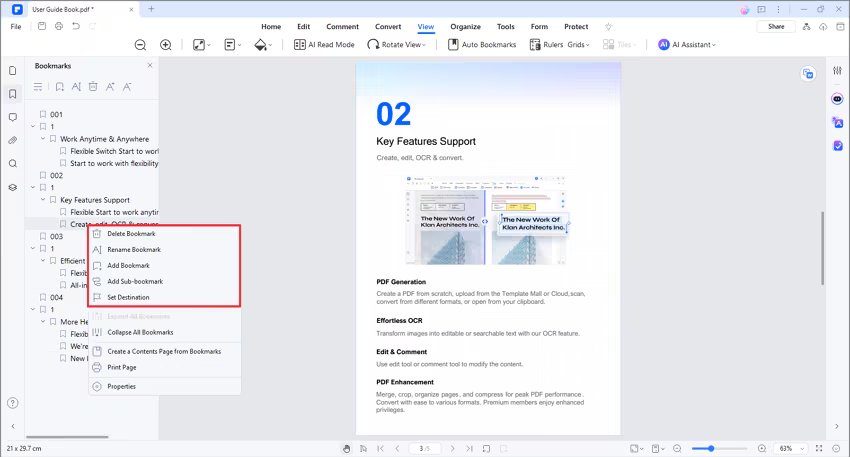
- Right-click the bookmark in the Bookmark panel to choose "Rename Bookmark" to change the name.
- Right-click the bookmark in the Bookmark panel to choose "Add Child" to add a child bookmark.
- Right-click "Set Destination" to change the bookmark to the current page.
- Right-click "Expand All Bookmarks" to expand all the bookmarks including the child bookmark.
- Right-click "Collapse All Bookmarks" to collapse the child bookmark.
4. Create a Content Page from Bookmarks.
AULPDF enables users to effortlessly create a content page based on existing bookmarks, providing a convenient way to navigate through their PDF files.
- Open your PDF in AULPDF and go to the left bookmark panel.
- Right-click on a bookmark and select "Create a Content Page from Bookmarks."
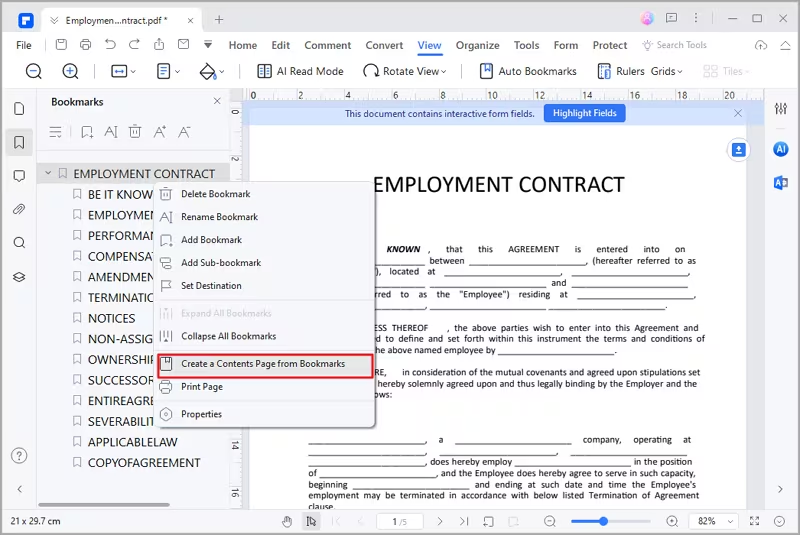
- A content page is added at the PDF's start.
- Click on items in the content page to jump directly to your desired sections.