How to take a screenshot of a PDF page.
To create a screenshot of your PDF file, click on the "Tool" > "Screenshot" button and then you will want to click and drag the mouse to the desired area. Once you release the mouse button, the following options will appear:
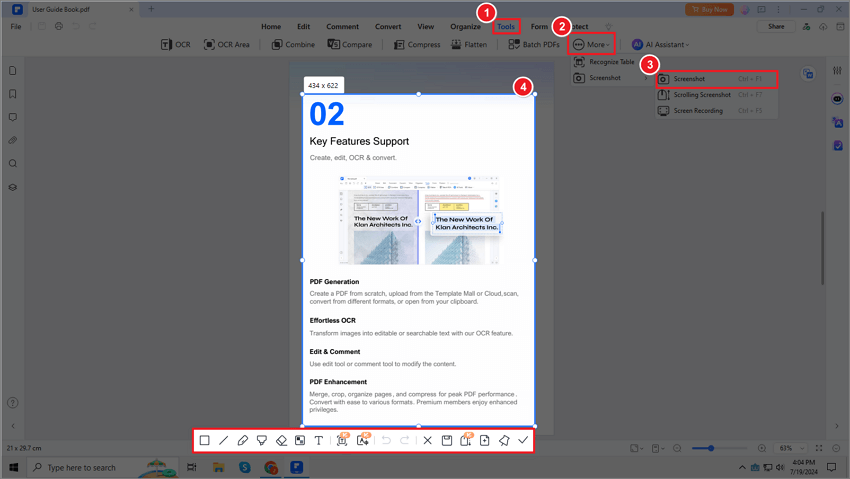
- You can annotate the screenshots with rectangle, lines, pencil, marker, eraser, Mosaic, or add text.
- Click undo to undo the annotations on the screenshot.
- Click redo to redo the annotations on the screenshot.
- Click save to save the screenshot on your computer.
- Click exit to exit the screenshot.
- Click capture to capture scrolling screenshot.
- Click save the screenshot image as a PDF to save the screenshot image as a PDF.
- Click pin to pin the screenshot image to the current PDF.
- Click copy to copy the screenshot, you can paste it somewhere else.