Subtask Functions in the Task Editor
There are four subtask functions you can use in the task editor. In this article, we'll explain subtask functions and how to add details to the subtasks you create.
Menu Functions for Subtasks Below are the four ways you can edit and add details to your subtasks.
1. Edit Task. You can edit a subtask after you save it. Click on the three vertical dots next to the subtask and select EDIT TASK.

A new window will pop-up and you can edit information about the subtask, such as task and budget details. Click SAVE to save any edits you make. Alternatively, turn on the auto-save feature, located near the top-right of your Task Editor window, by clicking the "auto-save" text. That way, AulT&E saves your work automatically.
2. Mark a subtask complete. Click on the three vertical dots next to the subtask and select MARK COMPLETE. This will strikethrough the task—a visual reminder that the task is finished.

When a subtask is marked complete, it’ll look like this:
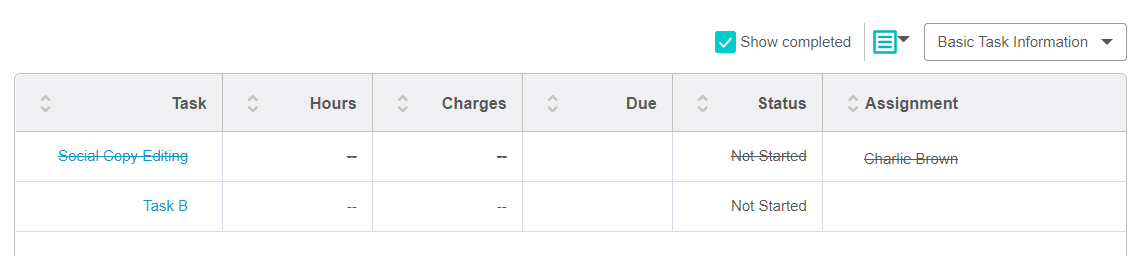
3. Un-Group Task. Turn a subtask into a task by choosing UN-GROUP TASK. By selecting this option, the subtask “Social Copy Editing” becomes a task, as shown in the example below.

Notice the change below. “Edit copy” is now a task that we can add subtasks to.

4. Delete a subtask. Select DELETE from the picklist and AulT&E will prompt you with a question to see if you’re sure you want to delete the subtask. Click “yes” to delete it.

Add Subtask Details
Several blank cells will appear next to each subtask you create. Use these cells to add subtask details, such as due date, hours, and budget. We’ll discuss each option below.

Let’s look at how to add subtask details.
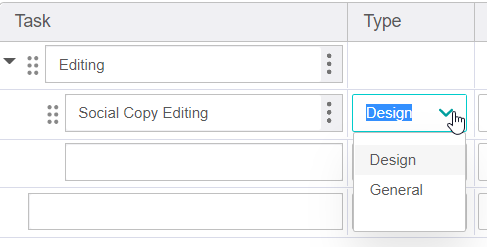
1. Task Type. Click on the gray arrow under TASK TYPE and you’ll get a picklist of options to categorize the subtask you created. The values that appear in the picklist are customizable and firm-dependent. (You’ll only see this cell option if you have at least one workflow established for your tasks. If you’re not utilizing Task types or status codes, we’ll omit this field from your task editor.)
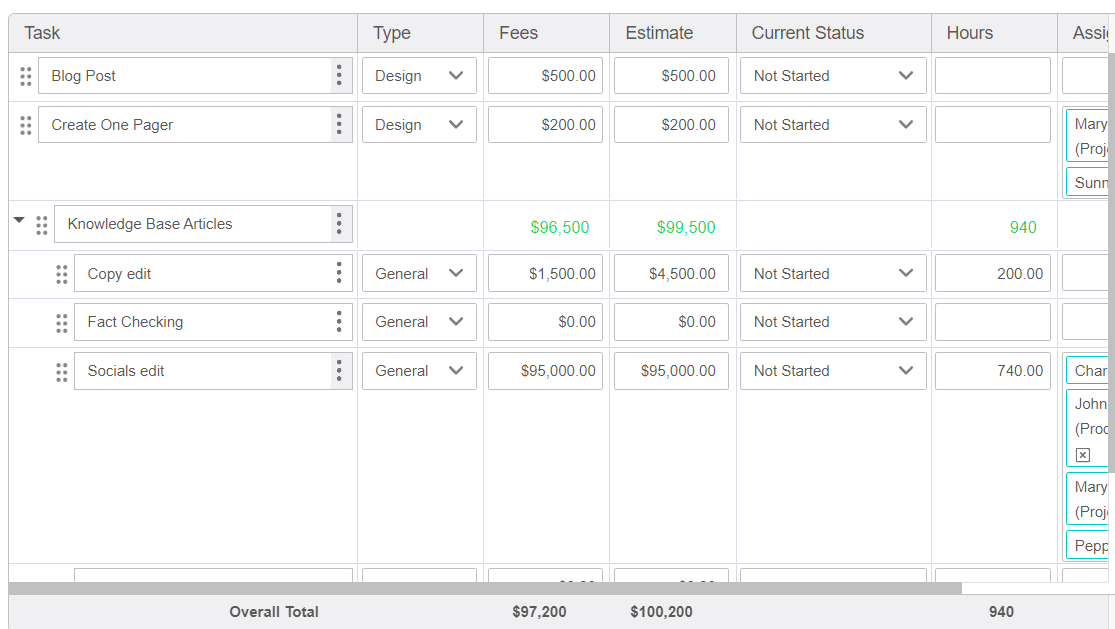
2. Budget. Add the amount of money you’re allocating to the subtask. Type a numerical value into the cell under BUDGET. A dollar sign will populate automatically once you click out of the cell.
3. Hours. Add the number of hours you want to be allocated to the subtask. Type the numerical value into the cell under HOURS.
Note: The task editor automatically totals the subtasks’ budget and hours for each task. In the example below, the totals are in green and located on the same line as the task itself.

3. Due Date. Add a due date for the subtask by either typing the date into the cell directly (ie, 7/1/17), or clicking into the cell and selecting a date from the calendar that pops up.

4. Assignments. Add staffers to subtasks. Click on the GRAY ARROW and a picklist of your staffers will show up. Click the box next to the staffers you want assigned to this task. Your selection(s) will appear in the field under "Assignment(s)."

Note: You can delete staffers from the assignment cell by clicking on the small “x” next to each name.
You can see your overall budget and hour totals for all of your tasks and subtasks at the bottom of the task editor window. This information is in gray in the image below.
Sort Your Subtasks
You can re-order subtasks within a group or move a subtask from one group to another. Click on the two rows of dots and drag and drop the subtask so they’re in an order that makes sense to you.

Task Editor Impact on Foresight Planning Tab
If you use Task-Based Resourcing, available in AulT&E Foresight, changes in the project Task Editor will automatically synchronize with your projects in AulT&E Foresight. Learn more: Task-Based Resourcing in AulT&E Foresight.
The table below explains how you can manage and view project information across AulT&E and Foresight: