Create Subtasks in the Task Editor
After creating tasks, you may find it helpful to create subtasks, or smaller “to do’s,” under a task. For example, the task of writing a press release may include subtasks like interviewing the CEO for quotes and getting images from the marketing executive.
Note: The article assumes that you know how to create a task, which is necessary in order to create subtasks. Click here if you’re new to tasks.
This article will explain how to create subtasks, which appear under tasks. Follow these steps:
1. Click on the three dots to the right of the task, and select ADD SUBTASK from the picklist.

Your original task will be displayed in green font, and the task and subtask(s) will now be in a hierarchical group.
2. Type the name of the subtask into the cell, and another subtask cell will populate beneath it. You can add as many subtasks as you’d like.

3. Click SAVE near the bottom-right corner of your screen to save your work.

Alternatively, turn on the auto-save feature, located near the top-right of your Task Editor window, by flipping the switch beside AUTOSAVE to ON. That way, AulT&E saves your work automatically.

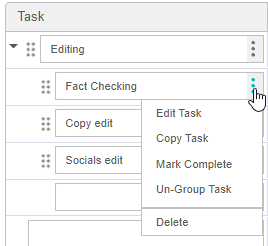
When you click the THREE DOTS next to your subtask, you'll see a picklist with some more options for further editing. Click here to learn about the features within this picklist.
TIP: Move Your Subtasks Within the Task Editor
Re-arrange your subtasks by clicking on the SIX DOTS on the left-side of the subtask cell. Then, drag the task to where you want it to appear.
In the example below, we can move the subtask “Copy Edit" to appear as the first subtask.

The change looks like this:

All of the details associated with the subtask, such as budget and hours, move with the subtask.
Task Editor Impact on Foresight Planning Tab
If you use Task-Based Resourcing, available in AulT&E Foresight, changes in the project Task Editor will automatically synchronize with your projects in AulT&E Foresight. Learn more: Task-Based Resourcing in AulT&E Foresight.
The table below explains how you can manage and view project information across AulT&E and Foresight: