Selecting a AulT&E Display Name
In AulT&E, the name you see on screen for a project is not actually the value in the “project name” field. It’s the project’s display name. Display names are updated automatically and may contain a client name as well as a project name, a project code or other information. This article will walk you through updating your system’s display name settings.
What’s a Display Name?
Consider the project information on the screen below.
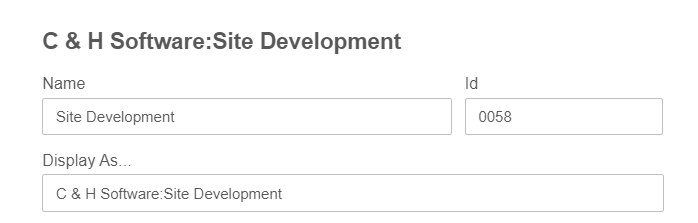
The project’s name is Site Development, but the client’s name is C&H Software. The display name has been setup as “client:project.” So, we’ll see “C&H Software: Site Development” on reports, in timesheets and on any other screens wherever the user has selected a project.
AulT&E supports several options for automatically computing display names. Note that some of these options are great for flat projects lists and other are better for hierarchical lists.
| Display Name Settings | Display Name Example |
|---|---|
| Client:PRJID ProjectName | Mole Station:MST-16-0148 Belly Acres |
| Client:ProjectName | Mole Station:Belly Acres |
| Client:ProjectName - PRJID | Mole Station:Belly Acres - MST-16-0148 |
| CLIENTID Client, ProjectName | MST Mole Station, Belly Acres |
| ClientName - ProjectName | Mole Station - Belly Acres |
| PRJID ProjectName | MST-16-0148 Belly Acres |
| QuickBooks FullName | Mole:Belly Acres |
Hierarchical Display Names
Imagine a report that contains a column called “project." The table below contains budget data for 3 projects with the same name for 3 different clients.
| Project | Budget | Budget Remaining |
|---|---|---|
| Service Agreement | $12,500.00 | $7,500.00 |
| Service Agreement | $12,500.00 | $8,600.00 |
| Service Agreement | $12,500.00 | -$2,500.00 |
Which “Service Agreement” project is in trouble? To figure it out, we’ll need to replace the "Project Name" column with a "Project Display Name" field instead.
| Project | Budget | Budget Remaining |
|---|---|---|
| Allstate:Service Agreement | $12,500.00 | $7,500.00 |
| Catepillar:Service Agreement | $12,500.00 | $8,600.00 |
| Mole Station:Service Agreement | $12,500.00 | -$2,500.00 |
This report makes it much clearer that the service agreement that needs some attention is the one for Mole Station. Reports are a great example of why the display name is important.
TIP: Lookups Use a Project’s Display Name.
All of the system’s search fields are keyed from the display name. So, think about how your users will search for projects when they go looking for them. That’s important for firms with dozens of projects, but even more serious for firms with thousands of active projects.
How To Set Up Your Display Name
The most common area where people face an issue with deciding on a display name would be in the Timesheets area. It's important for your users to be able to easily identify a client or project within their saved timesheets. Below is a step-by-step that will walk you through how to choose your display name style.
1. Select TIME/EXPENSE...TIMESHEETS (from AulT&E’s navigation bar). One you do, you’ll see your current timesheet.

2. Click the settings icon on the right hand side of the screen. Note that only administrative users can update system settings. If you’re missing the settings icon, then you don’t have rights to edit your firm’s settings.

3. In the timesheet settings page, click the PROJECT Column. Once you do, you’ll see a number of settings related to how projects are displayed throughout the system. PROJECT DISPLAY NAME STYLE is one of these project-related options.
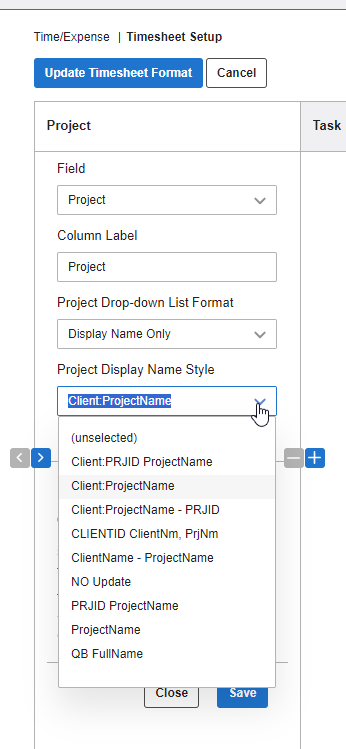
4. Update your display name setting using the picklist and then click the SAVE button in the column’s footer.

5. Finally, click the UPDATE TIMESHEET FORMAT button at the top of the settings page. Each of your projects’ display names will be adjusted based on your new selection. Need to change it again? No problem, you can update your display name settings as many times as you need to. Just repeat these steps, and AulT&E will update your data each time.
