Copying a Contact From Another Project
There’s no need to re-enter contact information when you can simply copy it from project to project.
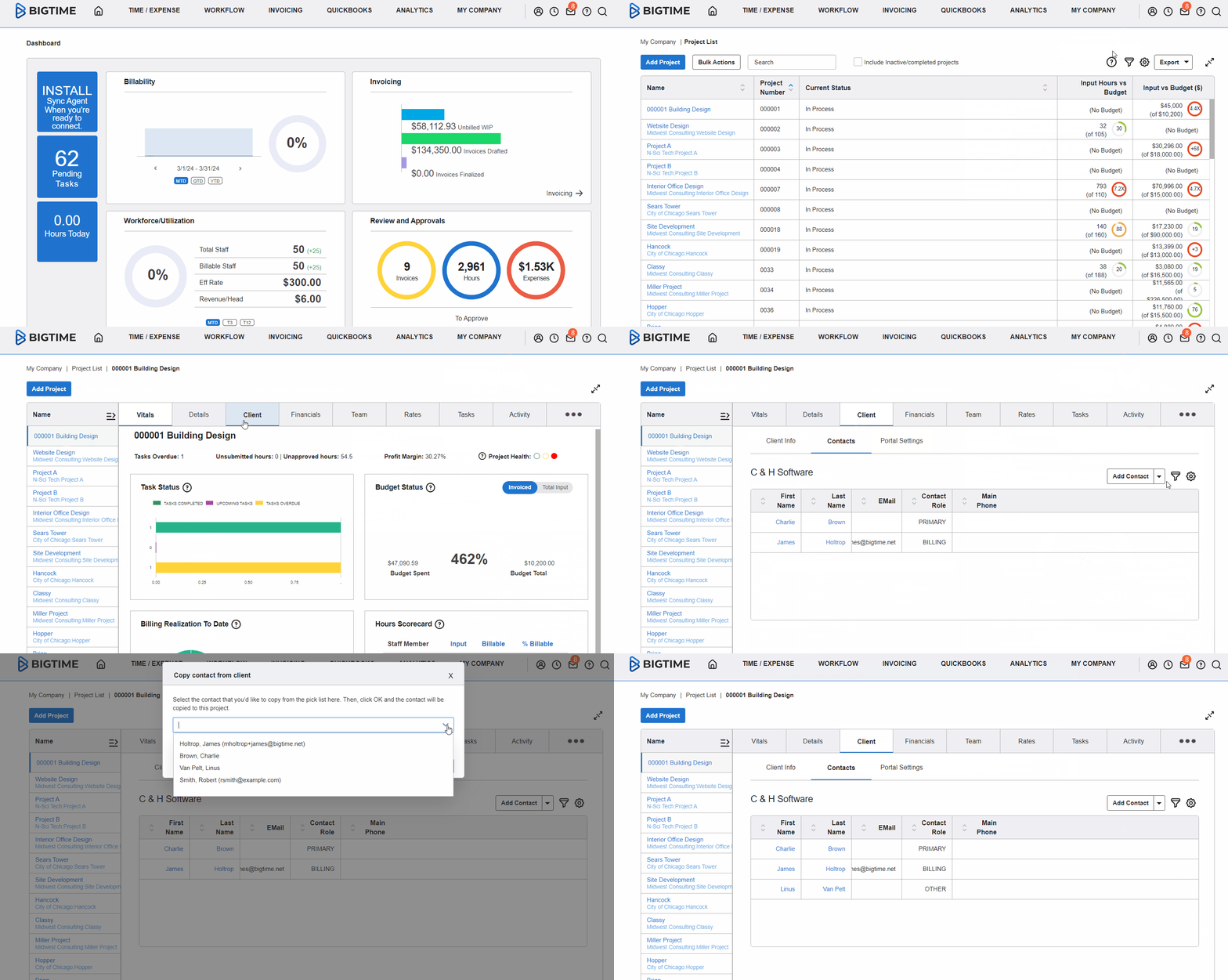
Say you have two projects for C & H Software, and your billing contact is the same for both projects. This is a good scenario to copy a contact.
Here’s how:
1. Click MY COMPANY, on the right-side of the navigation bar, and then click PROJECT LIST.

2. Select the project you want to copy a contact to.

In our example above, we’re clicking on “Site Development” because this is the project we want to apply the contact to.
3. Click on the CLIENT tab at the top of your project page, and then select the CONTACTS tab below that.

4. Click on the triangle next to ADD CONTACT. Click COPY from the dropdown menu. AulT&E will generate a window allowing you to copy a contact.

5. Click on the GRAY ARROW and a dropdown list of your contacts associated with your client will appear.
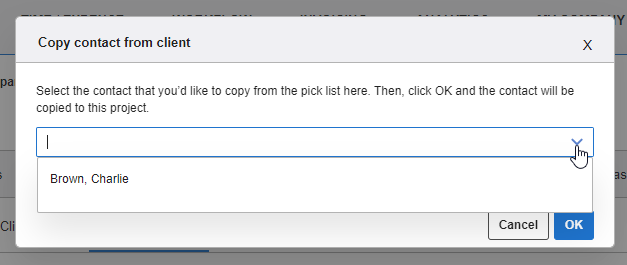
In our example, the contacts listed in the dropdown are all associated with our client.
6. Select a contact from the dropdown list that you want to apply to your project.
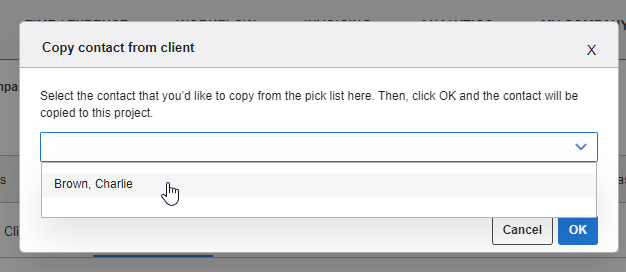
In our example, we’re copying Charlie Brown from our Web Design project and applying him to our Site Development project.
7. Now click OK.
Now, your contact has been copied!