Add and Edit Subtasks in Gantt Charts
You not only want to see how your subtasks for a given project work together. But you also want the ability to add new subtasks and update existing ones. Easily manage your subtasks with AulT&E’s Gantt chart. This article will show you how.
First, get your Gantt chart for a specific project. Your window should look like this:
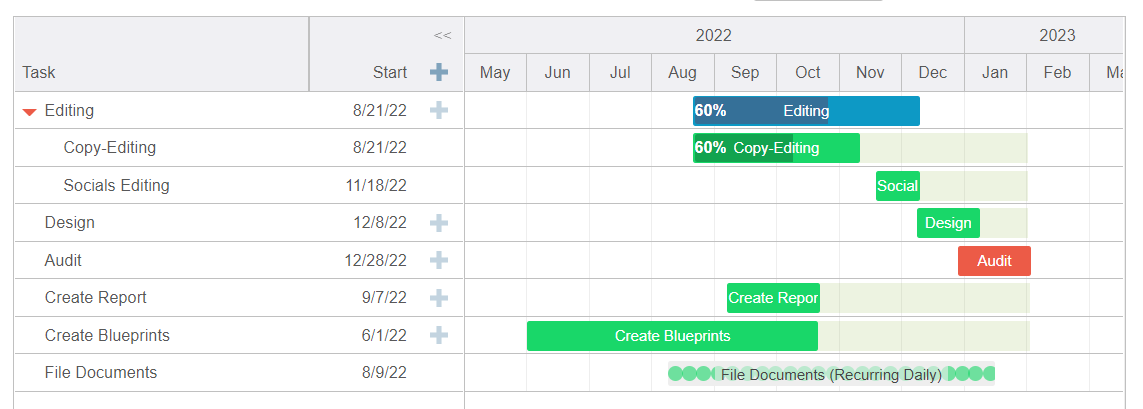
NOTE: We’re using the “expanded view,” which you can get by clicking the green box with white arrows (near the top-right of your window).
First, we’ll show you how to add new subtasks. Then how to amend existing or new ones.
Click on the +symbol to add a subtask to a specific task.

A new window will pop up and you can add your subtask details.
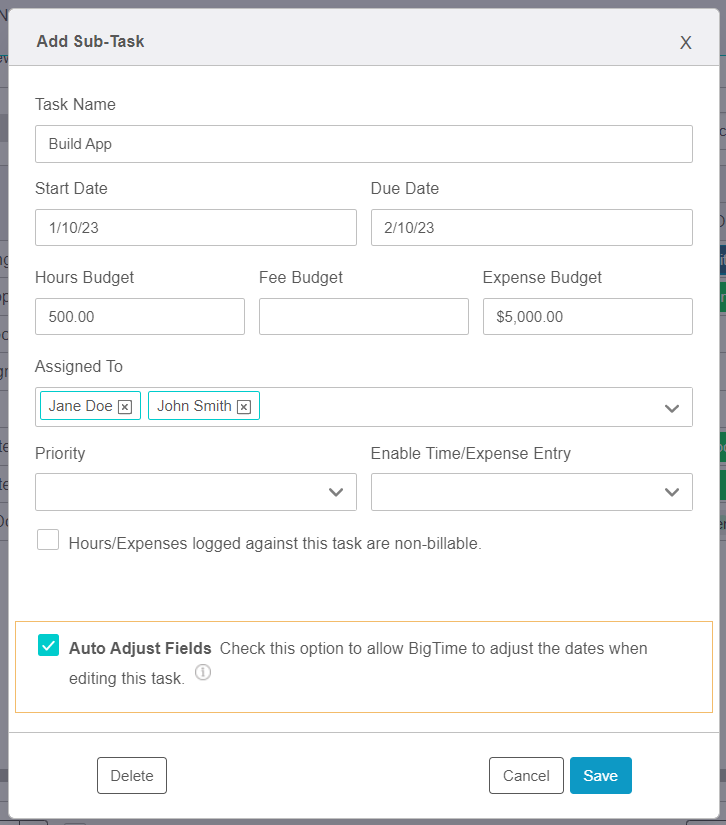
Click SAVE on the pop-up window, and your task will be added to your Gantt chart.

Remember to click SAVE on the Gantt chart itself to save your changes.

Now let’s edit a subtask. Click into the textbox with the subtask name to edit the name.

In the image above, we’re updating the name of our “Build App” subtask. Click SAVE on the bottom-right corner of the Gantt chart to save your work.
To edit a subtask detail, like the start date or budget, double click on a textbox in the column next to the subtask name.

For example, we click on the date in the START column. A window will pop up where you can enter and edit subtask details. Click SAVE to save your work.