Create Tasks in the Task Editor
Use the Task Editor to add tasks and task-related details all within the same window. This article will show you how to:
- Create a task,
- Copy a task, and
- Add a recurring task.
Note: This article assumes you know how to access the Task Editor.
Create a Task
Get to your Task Editor for a specific project. To create tasks, type the name of the task in the cell under TASK. Another cell will automatically appear once you begin typing. You can add as many tasks as you’d like.

Note: This is also where you can add subtasks. Just click on the row of dots.
Click SAVE to save your work. You can also flip the AUTO-SAVE switch to ON to have AulT&E automatically save your changes.

Another way to add a task is to click the blue ADD TASK button at the top of your Task Editor window.

Additional Task Options
Now that you’ve created a task, you’ve got several options available to you. Click on the COLUMN OF DOTS next to the task name and a picklist will populate.
- Edit task: A window will populate, where you can make changes to your existing task: from general task information to budget and dates.
- Mark complete: Indicate that your task is finished, and it’ll appear in gray on your Task Editor. You have to option to hide completed tasks at the end of the Task Editor window.
- Add subtask: Think of subtasks as smaller “to-dos” under a task. Add as many subtasks you need to keep your overall task on track.
- Delete: This option will permanently remove the task from your Task Editor.
Copy a Task
To save yourself some work you can copy one task list from another project. Follow these steps:
1. Click on the white arrow near the top of the window next to ADD TASK and select COPY from the picklist. A new window will pop-up.

2. Click on the red triangle and you’ll see a picklist of your projects. Select the project that you’d like to copy tasks from.
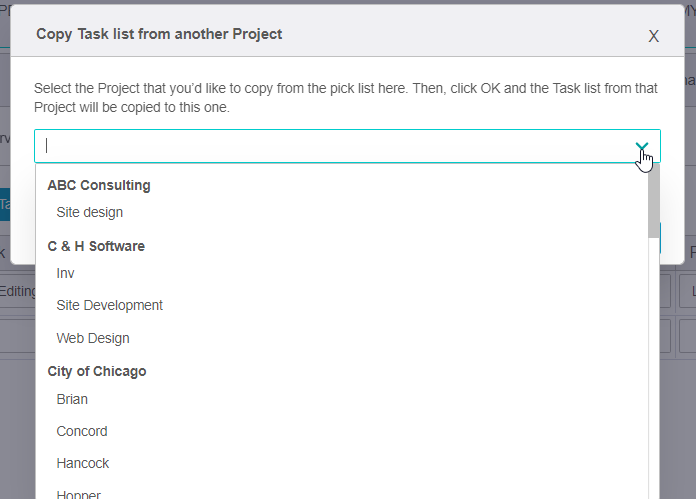
For example, we’re currently in the project Remote Writer’s Studio. We’d like to copy the tasks from ABC Studios and add them to Remote Writer’s Studio. So we’ll select ABC Studios from the picklist. Keep in mind, this action also copies budgets and assignments.
3. Click OK after you make your selection.

Add a Recurring Task
Use the Task Editor to add regularly occurring tasks. Click on the white arrow near the bottom of the window and select ADD RECURRING from the picklist.

A new window will pop-up for you to add details about the recurring task.
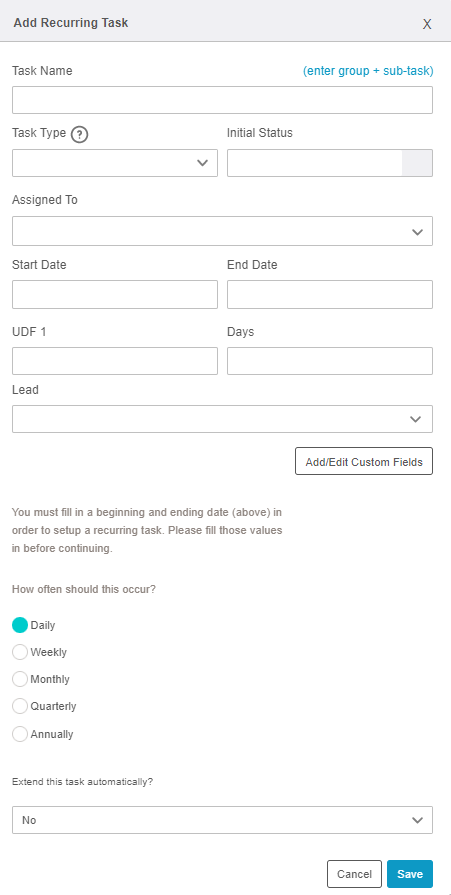
Be sure to include the start and end dates. You must include these dates in order to create a recurring task.
Select a start and end date in the text boxes provided. Then, select how often the task should occur: daily, weekly, monthly, quarterly, or annually. Click SAVE to save your work.
Task Editor Impact on Foresight Planning Tab
If you use Task-Based Resourcing, available in AulT&E Foresight, changes in the project Task Editor will automatically synchronize with your projects in AulT&E Foresight. Learn more: Task-Based Resourcing in AulT&E Foresight.
The table below explains how you can manage and view project information across AulT&E and Foresight: