Bulk Actions in the Task Editor
Use the bulk actions feature to apply an action to multiple tasks or subtasks simultaneously. You can:
- Mark tasks and subtasks complete.
- Update statuses.
- Reassign tasks and subtasks.
- Delete tasks and subtasks.
This article will explain how to use each of these four options.
Accessing Bulk Actions
Get to your task editor to access the bulk actions feature. Once there, find this feature at the end of the task editor window on the bottom-right.

Click the BULK ACTIONS button and several options will populate at the bottom of the task editor window; a small dialog box will appear next to every task and subtask, as well. Your screen will look like this:
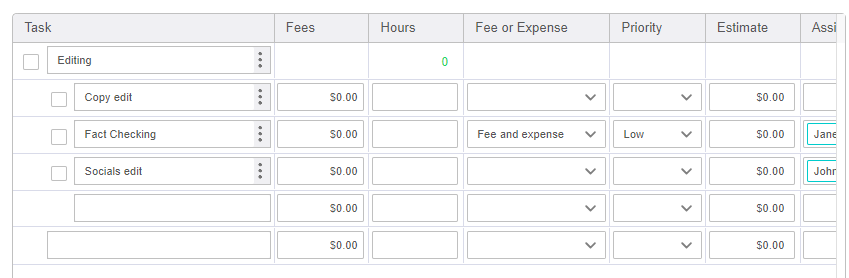
We’ll explain how to use the bulk action options next.
Mark Tasks and Subtasks Complete
If you’re done with several tasks and/or subtasks, mark them complete. Here's how:
1. After you’ve clicked BULK ACTIONS at the end of your window, check the boxes next to the tasks and/or subtasks you want to mark as complete.

2. Click MARK COMPLETE located at the end of the task editor window.

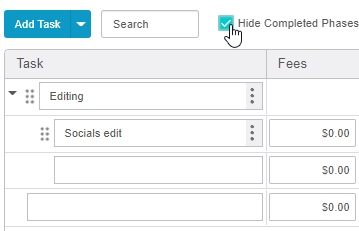
The completed tasks will no longer have a gray bar on the right-hand side — a visual indicator that the task and/or subtask is complete.

Check the box HIDE COMPLETED TASKS on the bottom of your window if you want to hide completed tasks, so they’re no longer visible in your task editor.
Update Statuses
Update the status for several tasks and/or subtasks at once by using the update status option. Here's how:
1. After you’ve clicked BULK ACTIONS at the end of your window, check the boxes next to the tasks and/or subtasks you want to update the status for.

2. Click UPDATE STATUS located at the bottom of the window.

3. Fill out the information in the window that populates.
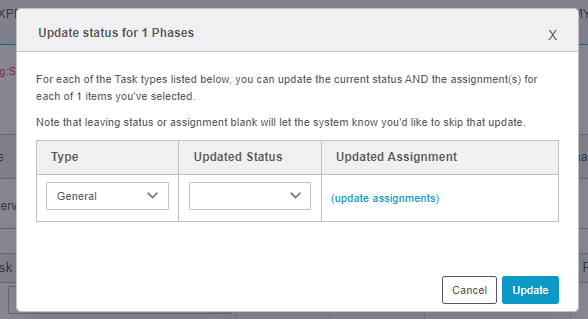
Click on the GRAY ARROW under UPDATED STATUS. A picklist (dropdown menu) will populate and you can make the appropriate selection.
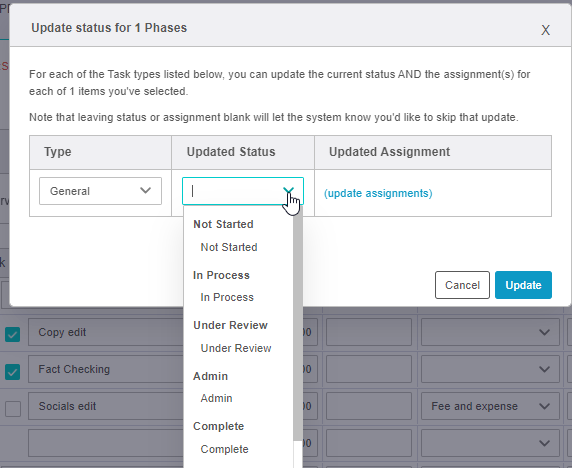
Click the hyperlink UPDATED ASSIGNMENTS to update the assignment, if you choose. When you click on this hyperlink, a picklist will populate and you can select the appropriate staffers.
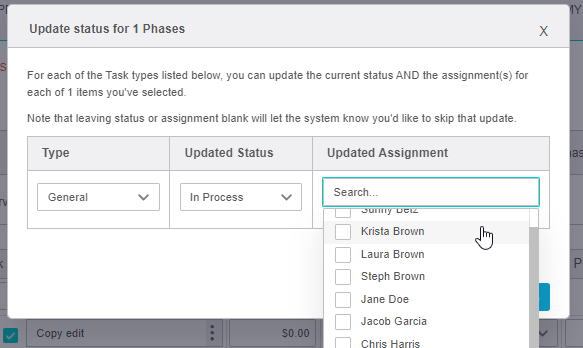
4. Click UPDATE to update the task editor with your selections.

Task Editor Impact on Foresight Planning Tab
If you use Task-Based Resourcing, available in AulT&E Foresight, changes in the project Task Editor will automatically synchronize with your projects in AulT&E Foresight. Learn more: Task-Based Resourcing in AulT&E Foresight.
The table below explains how you can manage and view project information across AulT&E and Foresight: