The Project List View
You’ll frequently access the project list to view and/or edit your projects in AulT&E.
This article provides an overview of the project list window and highlights several features that you may find beneficial. You’ll learn how to:
- Access your project list.
- Use the project list toolbar.
- See project details.
Note: “Projects” may be referred to as “clients,” “engagements,” “jobs,” or “account teams,” depending on your lexicon settings. For simplicity, we’ll use “projects” in this article.
Access Your Project List
Click MY COMPANY...PROJECT LIST.

A new window with your projects will pop up. It’ll look like this:
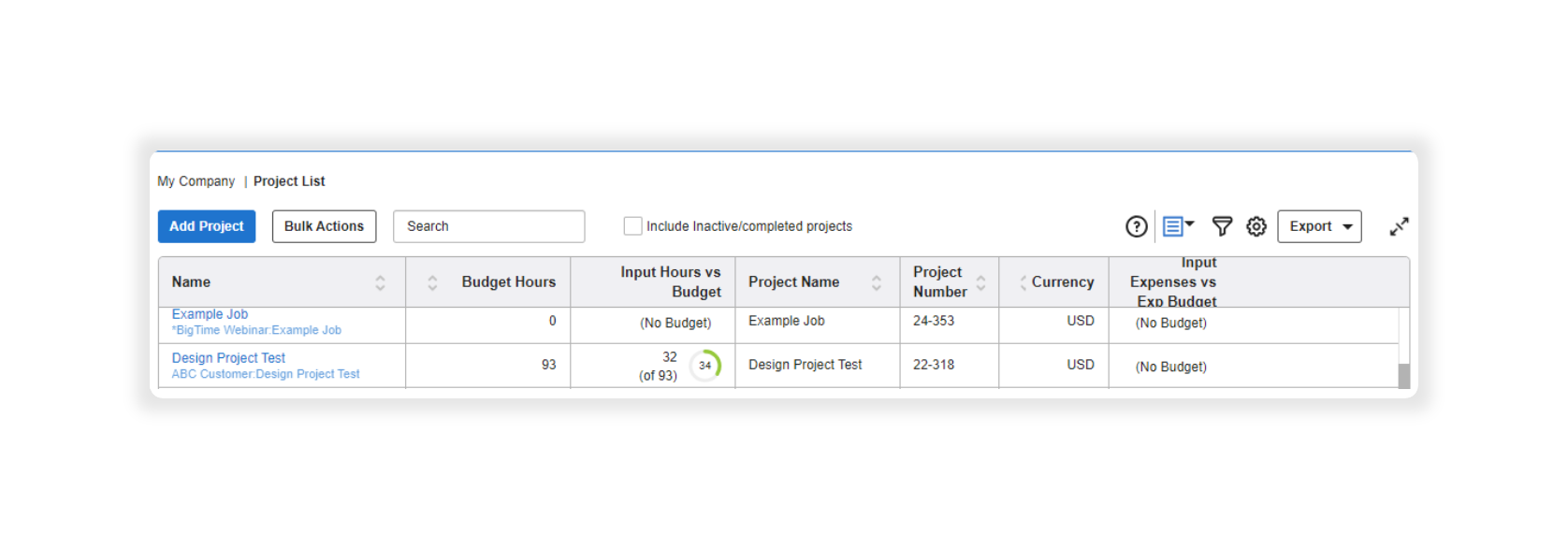
As a system admin, you’ll see all of the projects being worked on in your firm. Staffers, on the other hand, can only see their projects if given access to the "Project List Menu" in their User Rights. Click here to learn more about user rights.
Use the Project List Toolbar
The toolbar at the top of the window allows you to customize your project list. You can:
- Add new projects.
- Search for projects.
- Change the project list view.
- Add filters.
- Add and/or remove columns.
- Export the information.
We’ll explain each feature next.
Add New Projects
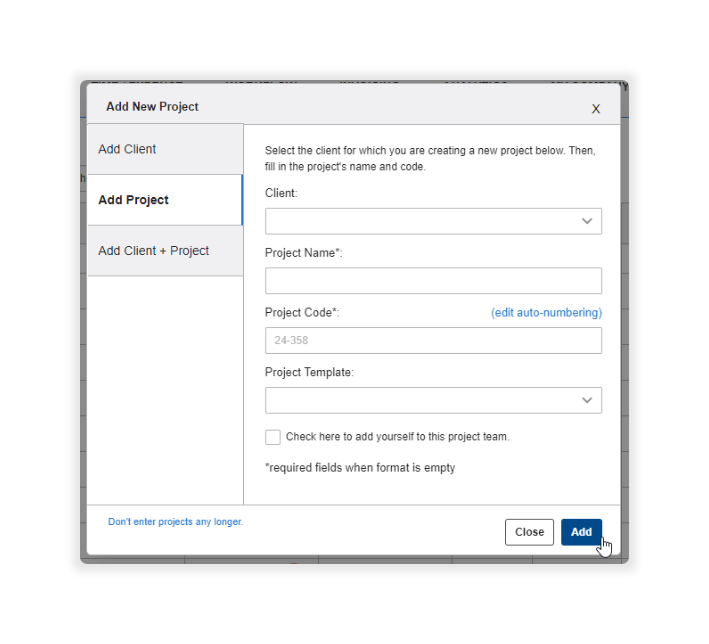
Click the ADD PROJECT button at the top left corner of your screen to add a new project to your project list.

A new window will pop up and you can add details associated with the new project. You can add as many new projects as you’d like. Click here to learn more about adding new projects.
Search Within the Project List
Instead of scrolling through all of your projects, start typing into the search field (next to the BULK ACTIONS button) and AulT&E will generate the results.

View Inactive Projects
Once projects are completed, they are typically marked as inactive. This means the project won’t appear in the list of projects, but AulT&E saves the history associated with the project.
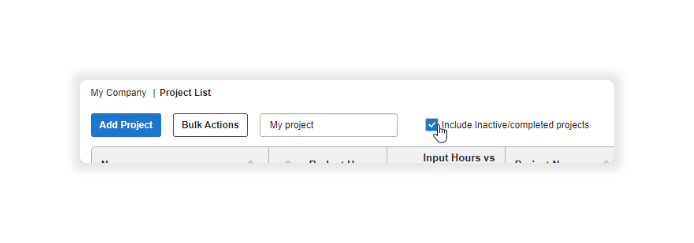
To see all of your inactive projects, check the dialog box next to the phrase INCLUDE INACTIVE/COMPLETED PROJECTS, which is beside the search bar at the top of your window.
Change the Project List View
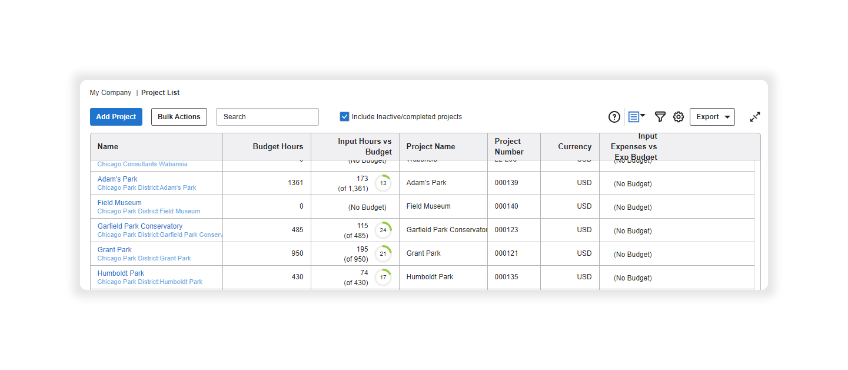
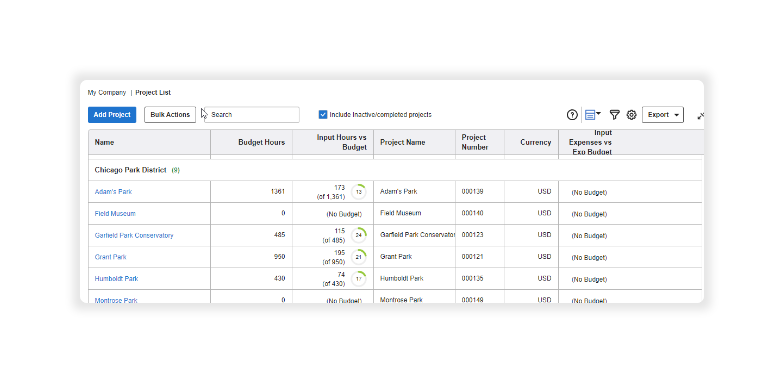
There are two ways to view your project list: flat view and by project. Change the view by clicking the gray triangle, next to the box of horizontal lines near the top-right of your project list, and making a selection from the picklist.
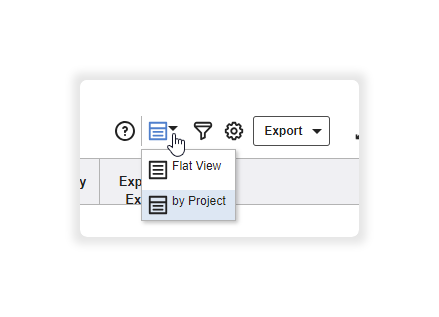
- FLAT VIEW means your projects will appear as a list. It’ll look like this:
- BY PROJECT is a hierarchical view. For example, you may have several smaller projects listed under one larger project or client. The “by project” view looks like this:
Add Filters
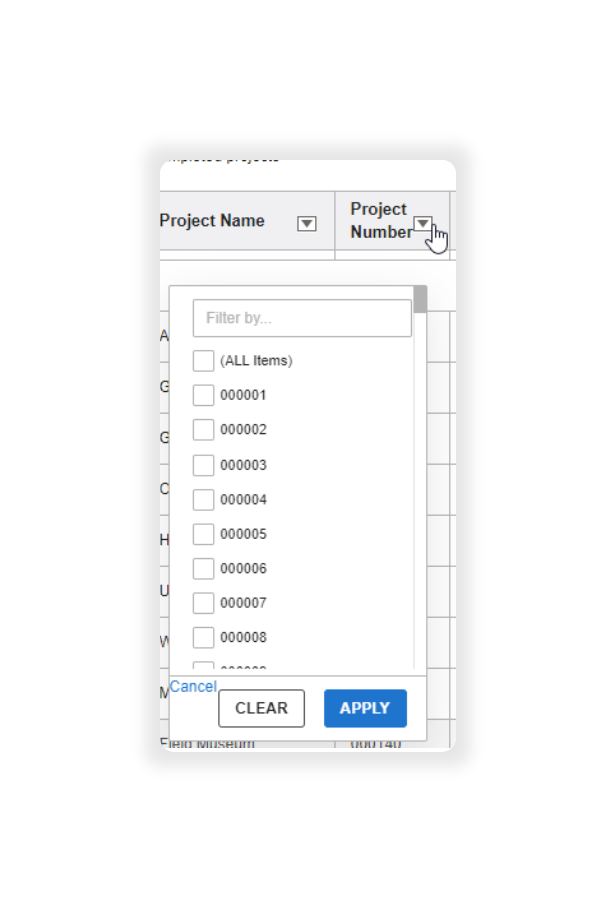
Click on the FUNNEL ICON, located near the top-right of your project list. Doing so will add filters to your columns.

Now that each column has a filter, you can search within that column.
Click on the box with a gray triangle in one of your columns and a picklist will appear. Check the relevant dialog boxes. AulT&E will narrow your list down to the values you've selected. You can also search for items by typing into the text field, FILTER BY.
Change Columns
Use the gear icon to add and/or remove columns to your project list.
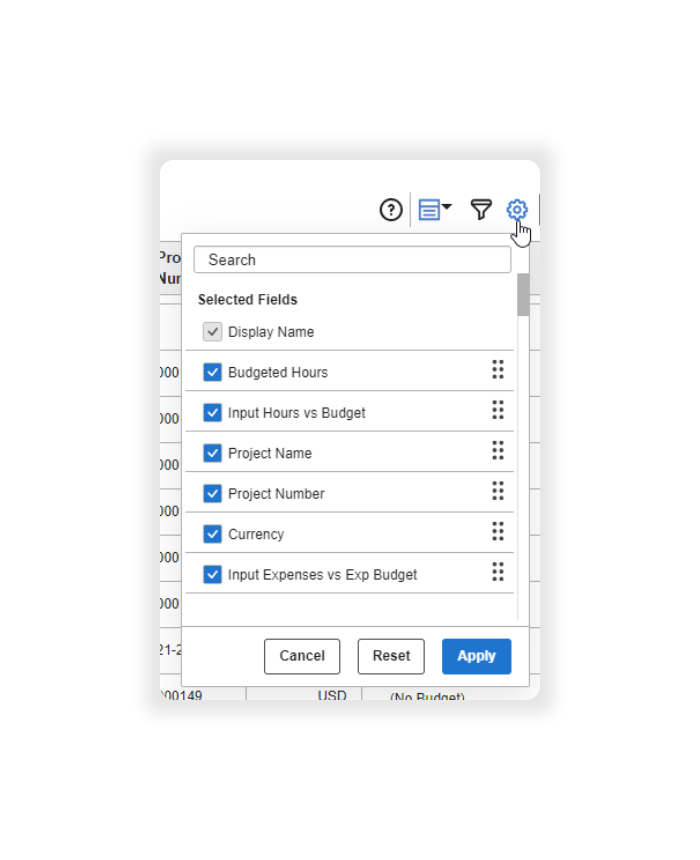
After you click on the gear icon, a picklist will appear. Then, you can do the following:
- Re-arrange the columns. Click on the SIX DOTS to the right of each field and drag and drop the category to appear as you’d like.
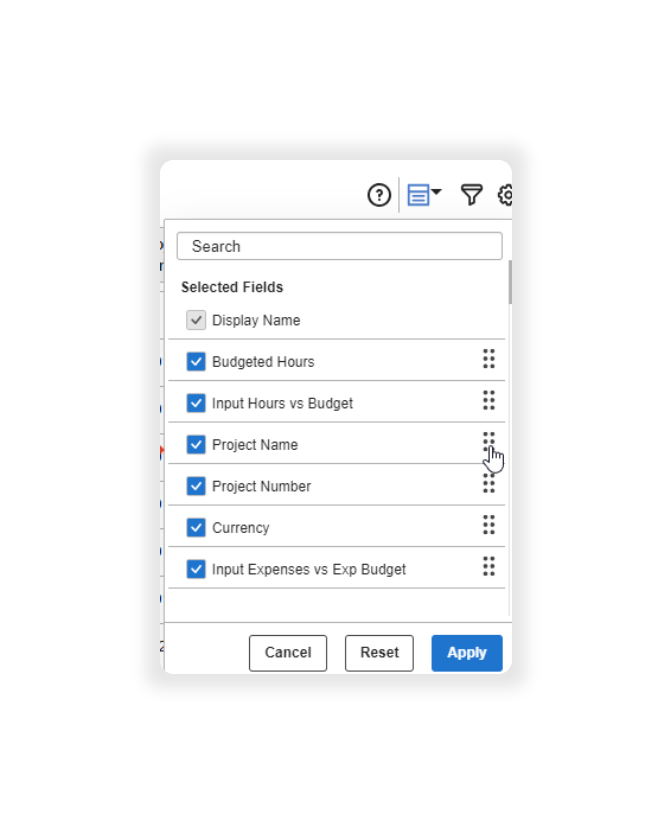
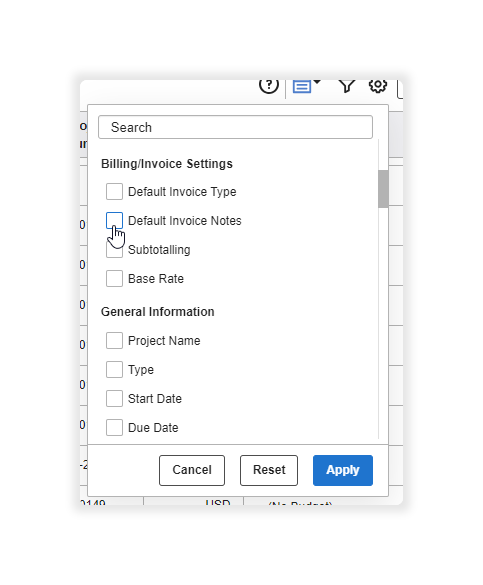
- Add or remove columns. To add columns, scroll past the “Selected Fields” section, with checked dialog boxes, and you’ll see a list of unchecked dialog boxes. Add more columns by clicking the boxes next to the respective category. Then, click APPLY to add your selections to your project list.
Remove existing columns by unchecking boxes under “Selected Fields.” Then, click APPLY to save your change(s).
Export Your Project Information
Click EXPORT to export your project information as a PDF or Excel file.

See Project Details
All of your projects are hyperlinked on the left-side of your project list window. Click on a hyperlink and you’ll be taken to the project dashboard for a specific project.
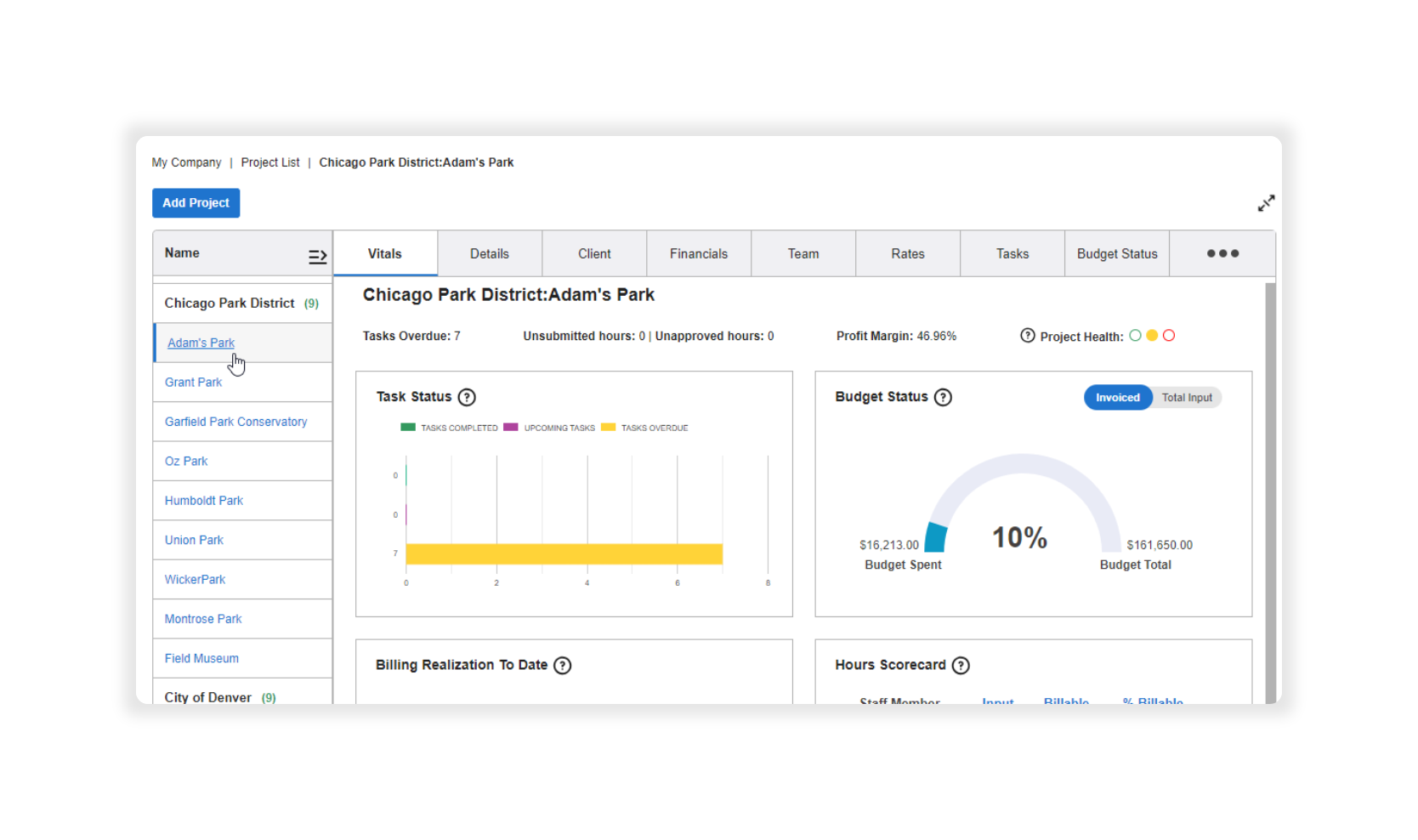
The project dashboard is intended for you to add information about a project, from general information (project name and type) to custom bill rates. Click here to learn more about the project dashboard.